電子化対応を支援する!請求書自動整理ツールのご紹介

最近思うこと
2024年1月に電子帳簿保存法が改定され、領収書や請求書を紙ではなく電子データのまま保存できるようになりました。さらに、同年10月には郵便料金の値上げも予定されています。この変化により、多くの企業では経営層や他部署から「なぜ電子化に対応していないのか?」という声が上がり、情報システム部門が大規模なシステム導入を迫られることが予想されます。こうしたシステムには数百万円から数千万円の投資が必要で、導入の際には費用対効果が重要なポイントとなります。
ただ、電子化によって削減される作業時間を正確に定量化するのは難しく、その効果を見える形にすることは簡単ではありません。削減された業務時間を、よりクリエイティブで価値の高いタスクに活用することが理想ですが、日本全体として、就職後にスキルアップに取り組む意識が低い傾向があり、システム導入により余剰となった時間を効果的に使いこなせないケースが多いのが現実です。これでは、せっかく業務効率化を進めても、その効果が十分に活かされません。これは、「パーキンソンの法則」が示すように、与えられた時間に合わせて仕事が膨張してしまうことが原因です。
そのため、システム導入の成功には、人材のリスキリングやスキルアップも不可欠です。優れた人材がいなければ、どんなにシステムを導入しても真の効果は得られないでしょう。たとえば、「優秀な100名のプロジェクト」を成功させるために、10万匹の猿や30万人の幼稚園児を集めても意味がないように、単純作業だけをこなす社員がどれだけ多くいても、質の高い成果は期待できません。つまり、会社にとって重要なのは、人数ではなく、いかに優秀な人材を確保するかという点です。
背景・目的
さて、ここまでが私の最近思うことなのですが、こうした変化により、経理担当者の業務はむしろ増えているのではないかと感じています。特に、電子ファイルで送信される請求書は、請求元でも保存が必要で、毎月大量のPDFファイルを保管することになります。そのファイル整理に困っているという話をよく耳にします。そこで今回は、請求書の電子ファイルから自動的にファイル名を付けるプログラムをご紹介します。私独自の調査なのですが、OCRを使っても精度の高い処理ができない場合が多いことが分かりました。そこで今回は画像認識ができる`gpt-4o-mini`のAPIを試してみたいと思います。
さらに、プログラミングに慣れていない方や、コマンドライン操作が苦手な方でも簡単に使えるよう、Excelから実行できる仕組みも用意しました。これにより、より多くの人が効率よく作業を進められるようになることを期待しています。
プログラムの概要
Pythonを使用して、画像データを`gpt-4o-mini`のAPIに送信するプログラムを実装しました。PDFファイルには、システムで生成されたテキストベースのPDFと、画像データを含むPDFの2種類があります。前者は**PDFパーサー**で処理できますが、後者は**OCR**でしか対応できません。しかし前述のとおり、現在のオープンソースのOCRについては認識精度が十分でないため、すべての種類のPDFファイルを一旦画像ファイルに変換し(jpeg形式)、その後`gpt-4o-mini`のAPIで処理する方法に切り替えました。その結果、非常に精度の高い処理が実現しました。
さらに、この処理をExcelシート上のボタンから実行できるようにし、Pythonで生成されたログをCSVファイルとして保存し、Excel上でそのCSVファイルの内容を表示できる仕組みを構築しました。これにより、PythonとExcelの連携を強化し、作業効率を向上させることが可能になりました。
プログラム
本章では、PDFファイルの名称を変更するPythonのプログラムと、それを簡単なユーザインターフェースで呼び出すExcel VBAのプログラムを紹介します。
PDFファイル名変更(Python)
プログラムは`base64`のライブラリを用いたものです。
以前投稿した記事のプログラムを流用しています。
https://qiita.com/ogi_kimura/items/f6b8e3426349767e8f7b
```python:gpt_script.py
import os
import sys
import glob
import csv
from datetime import datetime
from dotenv import load_dotenv
import base64
import pandas as pd
from pdf2image import convert_from_path
from langchain_openai import ChatOpenAI
from langchain_core.prompts import ChatPromptTemplate
from langchain_core.prompts.chat import HumanMessagePromptTemplate
FOLDER_PATH = sys.argv[1]
system = (
"あなたは有能なアシスタントです。ユーザーの問いに回答してください"
)
question = """
図の中の文字を抜き出して
"""
## =================================================================
def generate_question(text):
return f"""
以下の請求書の内容から、会社名、請求日、請求金額、摘要名を抽出してください。
{text}
結果は以下のフォーマットで返してください:
会社名: [会社名]
請求日: [請求日]
請求金額: [請求金額]
摘要名: [摘要名]
"""
# PDFをJPEGに変換する
def pdf_to_jpeg(pdf_path, jpeg_path):
images = convert_from_path(pdf_path)
images[0].save(jpeg_path, 'JPEG')
return images[0]
#画像ファイルをbase64エンコードする
def encode_image(image_path):
with open(image_path, "rb") as image_file:
return base64.b64encode(image_file.read()).decode('utf-8')
## =================================================================
load_dotenv()
files = glob.glob(os.path.join(FOLDER_PATH, "**/*.*"), recursive=True)
log_file = open(f"{FOLDER_PATH}log.csv", mode="w", newline="", encoding="shift_jis")
for file in files:
base, ext = os.path.splitext(file)
if ext == '.pdf':
image = pdf_to_jpeg(file, base + ".jpg")
base64_image = encode_image(base + ".jpg")
image_template = {"image_url": {"url": f"data:image/png;base64,{base64_image}"}}
chat = ChatOpenAI(temperature=0, model_name="gpt-4o-mini")
#chat = ChatOpenAI(temperature=0, model_name="gpt-3.5-turbo")
#1: 画像から文字列を取得する。
human_prompt = "{question}"
human_message_template = HumanMessagePromptTemplate.from_template([human_prompt, image_template])
prompt = ChatPromptTemplate.from_messages([("system", system), human_message_template])
chain = prompt | chat
result = chain.invoke({"question": question})
#2: 取得した文字列から、請求書の情報を取得する。
human_prompt = "{question}"
human_message_template = HumanMessagePromptTemplate.from_template([human_prompt, image_template])
prompt = ChatPromptTemplate.from_messages([("system", system), human_message_template])
chain = prompt | chat
result = chain.invoke({"question": generate_question(result)})
# ---------- ファイル名を変更 ----------
# 抽出したテキストを行ごとに分割
rows = result.content.split('\n')
# 各行をさらにカンマ区切りで分割し、リストに変換
table_data = [row.split() for row in rows if row.strip()]
# Pandasのデータフレームに変換
df = pd.DataFrame(table_data)
# 会社名
company_name = df[1][0][:15]
# 請求日
date_obj = datetime.strptime(df[1][1].replace("年", "/").replace("月", "/").replace("日", ""), "%Y/%m/%d")
claim_date = date_obj.strftime("%Y%m%d")
# 請求金額
claim_money = df[1][2]
# 摘要名
abstract = df[1][3].replace(",", "_")[:20]
# 指定のフォーマットで日時を文字列として取得
now = datetime.now()
formatted_time = now.strftime("%Y%m%d%H%M%S")
os.rename(file, f"{FOLDER_PATH}{company_name}_{claim_date}_{abstract}_{formatted_time}.pdf")
os.remove(base + ".jpg")
# ログファイル出力(Excel用にShift-JISに変換)
writer = csv.writer(log_file)
pdf_file_name = f"{FOLDER_PATH}{company_name}_{claim_date}_{abstract}_{formatted_time}.pdf"
writer.writerow([pdf_file_name])
```
このプログラムで注意したところ、苦労したところについて説明します。
プロンプト
請求書の画像データから「会社名」「請求日」「請求金額」「摘要名」を抜き出して、それらをPDFのファイル名に付与することを考えました。
ただ、`ChatGPT`に対してどういうプロンプトにして良いかわかりませんでした。そういう場合は、本人に聞いてみよう~という事で、`ChatGPT`にどのようなプロンプトにして良いかを質問しちゃいました。その結果が以下のプロンプトになります。`{text}`は、請求書画像を基に`ChatGPT`から返却された文章です。このプロンプトでは、その文章をインプットにして再度`ChatGPT`にその文章の中から「会社名」や「請求日」を拾い出してもらうという流れです。
```python
f"""
以下の請求書の内容から、会社名、請求日、請求金額、摘要名を抽出してください。
{text}
結果は以下のフォーマットで返してください:
会社名: [会社名]
請求日: [請求日]
請求金額: [請求金額]
摘要名: [摘要名]
"""
```
画像変換
このプログラム自体は流用したものなのですが、PDFファイルを画像に変換して、それを`gpt-4o-mini`に認識させるという考え方は今までにはない方法なのではないかと思っています。
```python:
image = pdf_to_jpeg(file, base + ".jpg")
base64_image = encode_image(base + ".jpg")
image_template = {"image_url": {"url": f"data:image/png;base64,{base64_image}"}}
```
画像認識結果から取得した配列
配列を`df`として定義して画像認識結果の情報を取得しています。`df`がリストになっていることは分かっていたので`for`で回したかったのですが、なぜかエラーが出てしまったので、とりあえず「会社名」は`df[1][0]`、請求日は`df[1][1]`、請求金額は`df[1][2]`として情報を取得することにしました。**VSCode**にてデバッグモードにして、ブレークポイントを付けて、処理を中断させながら「ウォッチ式」を確認することで、配列の中に何が入っているかを知ることができました。
```python
# 会社名
company_name = df[1][0][:15]
# 請求日
date_obj = datetime.strptime(df[1][1].replace("年", "/").replace("月", "/").replace("日", ""), "%Y/%m/%d")
claim_date = date_obj.strftime("%Y%m%d")
# 請求金額
claim_money = df[1][2]
# 摘要名
abstract = df[1][3].replace(",", "_")[:20]
```
また、ファイル名に日付(例えば`20240915`)を付与したかったのですが、「`/`」をファイル名に適用できないことや、コンマ(`,`)もファイル名に含めることができないなど、後からいろいろエラーが検出されたので、そのような対処のための処理も追記しました。ただ、未だいろいろ課題はあるだろうなぁと思っています。エラー処理としては粗削りです。
それから最後の最後に発覚したのですが、Pythonから出力したファイルをExcel VBAで読み込ませようとしたのですが、Excelが`UTF-8`に対応していない為、文字化けしてExcelのセルに表示されてしまいました。Excel VBAにエンコード処理を入れようかと思ったのですが、めちゃめちゃ大変そうでした・・・しかしながら、`ChatGPT`に質問をすると、あっさり回答が返ってきました。そう、Python側でエンコードを`shift-jis'に設定しておけばよいという事でした。なるほど、そうですよね・・・でも気づきませんでした。ChatGPTさんありがとー。
```python:
log_file = open(f"{FOLDER_PATH}log.csv", mode="w", newline="", encoding="shift_jis")
```
インターフェース(Excel VAB)
まずはExcelシートに追加したプログラムです。
シート状に`cmdExec`というボタンを作成して、そこに処理を埋め込みました。
実際の処理プログラムは`mdlExec.RunOCRScript`の中にあります。
```vb:ExecSheet
Option Explicit
Private Sub cmdExec_Click()
Dim path As String
path = ExecSheet.txtFolderPath
If path <> "" Then
Call mdlExec.RunOCRScript(path)
End If
End Sub
```
次に、実行処理のあるプログラムを記載します。
```vb:mdlExec
Option Explicit
Const START_ROW_NO = 3
Const LAST_ROW_NO = 50
Const COL_NO = 2
Public Sub RunOCRScript(folderPath As String)
Dim shellObj As Object
Dim ret As Integer
Dim csvFilePath As String
Dim fileNumber As Integer
Dim lineData As String
Dim iRow As Long
Set shellObj = VBA.CreateObject("WScript.Shell")
ret = MsgBox("請求書PDFファイルの名称を変更します。", vbOKCancel)
If ret = 1 Then
csvFilePath = folderPath & "log.csv"
' クリア処理
Call Clear
' Pythonスクリプトを実行
shellObj.Run "python C:\Users\ogiki\ocr\gpt_script.py " & folderPath, 0, True
' CSVファイルを開く
csvFilePath = Replace(csvFilePath, "\\", "\")
fileNumber = FreeFile
Open csvFilePath For Input As fileNumber
' CSVファイルのデータをExcelに書き込む
iRow = START_ROW_NO
Do While Not EOF(fileNumber)
Line Input #fileNumber, lineData
ExecSheet.Cells(iRow, COL_NO).Value = lineData
iRow = iRow + 1
Loop
' ファイルを閉じる
Close fileNumber
Call MsgBox("処理が完了しました。", vbOKOnly)
End If
End Sub
Public Sub Clear()
Dim iRow As Long
For iRow = START_ROW_NO To LAST_ROW_NO
ExecSheet.Cells(iRow, COL_NO) = ""
Next iRow
End Sub
```
ついでに、`Clear`関数も末尾に追記しています。ボタンを押下する度にコールされ、一覧がクリアされます。
このプログラムで注意したところ、苦労したところについて説明します。
フォルダパスのバックスラッシュ
これには苦労しました。pythonでは「`\\`」で表記するのに対して、Excel VBAでは「`\`」なんですよね。頭の中がこんがらがってしまいました。最終的に以下のプログラムを追加して、なんとか収めることができました。本当だったらエクセルの中のテキストボックスは「`\`」の記入方式にすればよかったかなぁ。(今回は「`\\`」の記入方式)
```vb:
' CSVファイルを開く
csvFilePath = Replace(csvFilePath, "\\", "\")
```
サンプルとして利用したpdf請求書
ネット上にあったサンプルを利用しました。そのうちの1つをお見せします。

合計4つのpdf請求書をサンプルに用いました。
!

実行結果
では実行してみます。
■ 実行前

■ 実行後

pdfファイル群のあるフォルダは、こんな感じになりました。

ちゃんとできているようですね。
これで、特定のフォルダにpdfファイルを沢山入れて実行すると、自動的にpdfファイル名を付与してくれるプログラムの完成です。
実行する方は、Excelファイルだけを起動して、ボタンをポチっとすると出来上がります。
おわりに
最近、電子帳簿保存法の改定やインボイス制度の施行により、経理担当者の業務負荷が増加しているという話を耳にしています。そうした方々が少しでも業務を楽にできるよう、サポートできればと考えています。しかし、負荷が軽減された分、単に時間を浪費するのではなく、その時間を活用して、よりクリエイティブで価値のある業務に取り組むためのスキルを身につけていくことが、今後の人生や生きがいにとって肝要です。
OCR vs OpenAIで表を解析してみた!精度の比較と課題を徹底検証

はじめに
先日、「OCRとOpenAIの比較」や「宝くじの番号をOCRで一括確認する方法」に関する記事を投稿しました。主に画像内の文字や数字の認識精度を比較した内容です。詳しくは以下の記事をご覧ください。
今回は、表形式の画像に焦点を当てて、OCRとOpenAIの認識精度を比較してみようと思います。
私自身は現在、別の業務の傍ら「特許情報検索システム」の開発を進めています。特許情報には文章だけでなく、図や数式、表なども含まれるため、それらの内容を正確に読み取る技術が必要です。特に、表の認識精度向上は非常に重要な課題です。この調査結果は今後のシステム開発の貴重な知見となると考えています。
使用したサンプルについて
今回は、特許庁のサイトからダウンロードした表形式の画像をサンプルとして使用し、OCRとOpenAIで認識精度を確認していきます。

この画像はかなり細かく、文字や線がかすれているため、精度の高い読み取りは難しそうです。それでも、OCRとOpenAIを使用してどこまで正確に認識できるかを試してみます。
プログラム
以下に、`gpt-4o`とOCRを使用したプログラムを示します。
gpt-4oのプログラム
まずは、ChatGPTに表形式の画像を読み込ませ、テキストとして出力する方法です。その後、そのテキストを表に変換してCSV形式で保存します。
```python
from langchain_openai import ChatOpenAI
from langchain_core.prompts import ChatPromptTemplate
import base64
import pandas as pd
question = """
図の中の表を表形式にして出力して
"""
image_path = "C:\\Users\\ogiki\\Desktop\\spreadsheet.jpg"
system = "あなたは有能なアシスタントです。ユーザーの問いに回答してください"
def encode_image(image_path):
with open(image_path, "rb") as image_file:
return base64.b64encode(image_file.read()).decode('utf-8')
base64_image = encode_image(image_path)
image_template = {"image_url": {"url": f"data:image/png;base64,{base64_image}"}}
chat = ChatOpenAI(temperature=0, model_name="gpt-4o-mini")
human_prompt = "{question}"
human_message_template = HumanMessagePromptTemplate.from_template([human_prompt, image_template])
prompt = ChatPromptTemplate.from_messages([("system", system), human_message_template])
chain = prompt | chat
result = chain.invoke({"question": question})
rows = result.content.split('\n')
table_data = [row.split() for row in rows if row.strip()]
df = pd.DataFrame(table_data)
csv_path = 'output_gpt-4o.csv'
df.to_csv(csv_path, index=False, header=False)
print(f"CSVファイルが {csv_path} に保存されました。")
```
OCR(Tesseract)のプログラム
続いて、Tesseract OCRを使用したプログラムです。基本的な流れは同様で、OCRで取得したテキストを表形式に変換し、CSVファイルに保存します。
```python
import cv2
import pytesseract
import pandas as pd
image_path = 'C:/Users/ogiki/Desktop/spreadsheet.jpg'
image = cv2.imread(image_path)
custom_config = r'--oem 1 --psm 6'
text = pytesseract.image_to_string(image, config=custom_config, lang='jpn')
rows = text.split('\n')
table_data = [row.split() for row in rows if row.strip()]
df = pd.DataFrame(table_data)
csv_path = 'output_ocr_cv2.csv'
df.to_csv(csv_path, index=False, header=False)
print(f"CSVファイルが {csv_path} に保存されました。")
```
OCRについての詳しい設定や事前準備については、以前の記事を参考にしてください。
処理実行結果
それでは、実際にプログラムを実行してみた結果を確認します。
gpt-4oの結果
最初に試した際、次のようなエラーメッセージが表示されました。
```dosbatch
申し訳ありませんが、画像の内容を直接読み取ることはできません。
```
**gpt-4o-mini**では対応できないようです。次に**gpt-4o**で実行したところ、出力が得られました。

一見うまくいっているように見えますが、タイトル部分が大きく異なっていたり、セルが正確に認識されていない箇所があります。
OCR(Tesseract)の結果
続いて、Tesseractを使用した結果です。

こちらも表が正しく認識されておらず、実用には程遠い結果となりました。
おわりに
今回は、表形式の画像認識について、OCR(Tesseract)とOpenAI(gpt-4o)を比較してみました。どちらも現段階では課題が残っており、完璧な認識は難しいと感じました。しかし、この経験は今後のシステム開発に役立つ知識となるでしょう。
ローカルLLMをWindowsで動かしてみた話

はじめに
最近「ローカルLLM」という言葉に惹かれ、調べてみたところ、なんとChatGPTのような言語モデルをローカルPC上で構築できるということを知りました。@ksonodaさんの投稿記事を参考にさせて頂きました。ありがとうございます。
これまで、過去の投稿記事でRAG(Retrieval Augmented Generation)をローカルPC上で動かすことに成功していたので(下記の過去の投稿記事)、もしかしたら生成AIに関するすべての処理を自前で完結させることができるかもしれない、という期待が膨らんできました。
そこで今回は、ローカルでのLLM構築に挑戦してみた体験談を共有したいと思います。
Ollamaのインストールとサーバ起動
ローカルで動かせるLLMのオープンソースプロジェクトはいくつかあるようなのですが、Windows上で利用できるものを探してみたところ、**Ollama**というものが見つかりました。まずはこれを試すことにしました。
当初、VSCodeを使いたかったのでWindows Subsystem for Linux(WSL)を使おうとしましたが、curlが使えなかったり、インストールでエラーが出たりといった問題が発生。最終的に、Windowsに直接インストールする方法を採用することにしました。インストールには以下の投稿記事を参考にしました。@kitさんありがとうございます。以上に分かりやすい内容となっていました。
早速**command-r-plus**モデルをインストールして実行してみました。
```dosbatch
ollama run command-r-plus
```
しかしながら、失敗です。
```dosbatch
Error: model requires more system memory (57.1 GiB) than is available (8.0 GiB)
```
どうやらメモリ不足のようです。手元のPCはメモリが8GBしかなく、参考にした投稿記事では、かなりリソースに余裕のある環境で動作させていました。
「AWSでスペックの高いサーバを借りようか?」とも考えましたが、それに匹敵するAWSのEC2にちて、**m5.2xlarge**は月額276ドル、**m5.4xlarge**ならば月額552ドルということで、即座に断念。そんな贅沢な遊びはできません…
仮想メモリの活用
「いや待てよ、仮想メモリを使えば何とかなるんじゃないか?」と思い立ち、仮想メモリの設定を行いました。最小1901MB、最大19GBに設定して再度試行。

やっぱりメモリ不足で稼働しませんでした。
## モデル変更
次に、軽量なモデルがないか探してみたところ、**gemma2**というモデルが見つかりました。これを導入し、再び実行。
```dosbatch
ollama run gemma2
```
しかし、またもやメモリ不足のエラー。
そこで、「仮想メモリの最小サイズを最大と同じにしてみたらどうだろう?」と考え、再度設定を変更。

再起動後、何とか動作させることに成功しました。ただし、メモリは限界まで使用されている状態でした。
生成AIに質問してみた
次にPythonでプログラムをしてみました。
```python
import datetime
from langchain_community.chat_models.ollama import ChatOllama
# ===============================================
print(f"[start] {datetime.datetime.now()}")
llm = ChatOllama(model="gemma2")
response_message = llm.invoke("大阪万博はあと何日?")
print(f"[process] {datetime.datetime.now()} {response_message.content}")
```
試しに「大阪万博はあと何日?」と質問してみました。モデルは動いているようですが、回答が返ってくるまでかなり時間がかかっている様子。9分後に、ようやく返答が表示されていました。
```dosbatch
[start] 2024-09-14 15:34:15.569601
[process] 2024-09-14 15:43:31.424225 大阪万博は**2025年4月13日から10月13日まで**開催されます。
つまり、現在(2023年10月27日)から **もう約1年と8か月**後です。
楽しみですね!
```
とっても感動はしたものの、1つの質問に9分はさすがに長すぎました。これでは商用には耐えられません。
因みにこの処理の実行は、2024年9月14日に実施しているのですが、**Ollama**の時が止まっているようで、現在が2023年10月27日になっていました。
おわりに
今回、ローカルでのLLM構築自体はそれほど難しくなく、インストールからデプロイまでなんとか進めることができました。しかし、PCのリソースが不足していたため、実用的な速度での応答は難しいという結果に。
今後はもっと軽量なローカルLLMがないか探してみようと思います。最終的には、LLMやRAGをすべて自作で賄うのが目標です。ただ、よく考えると、もし自分でLLMをうまく作れるようになったら、RAGは必要ないのかもしれませんね。
---
これが私のローカルLLM体験談です。興味のある方はぜひ試してみてください。
宝くじの番号をOCRで一括確認

これは、CANVAの生成AIに描いていただいたものです。
なかなかよいですね。
はじめに
前回の投稿では、OCRとOpenAIを比較して、認識精度の比較をしてみました。
その結果は、下記投稿記事でご確認いただければと思っております。
今回は、宝くじ券の番号をOCRで認識させるプログラムを紹介します。私事で恐縮なのですが、先日「宝くじ記念くじ」を150枚買ったのですが、券を1つ1つ確認すると歳のせいか手がカサカサになり、紙で指が切れて血が出てしまいました。
OCRを使って当選した券を瞬時に見分けられないか、ということで、宝くじ券番号を一括で大量に読み込んで、当選した宝くじ券を判定するプログラムを作成しました。「そんなこと、券売所の機械で店員さんに確認してもらえばいいのに。」と思う方もいるかと思いますが、そこはご愛敬ということで・・・
OCRライブラリ
Windowsでも利用できる`tesseract`を適用することにします。
これについてのダウンロード方法やインストール方法については、先述した前回の投稿記事を参照ください。
宝くじの画像
宝くじ券の番号の部分だけを画像として作成しました。

こんな感じです。大きな金額が当選している抽選券は一切ありません。
200円の当選が1つあります。(`1.jpg`)
また、あまりに外ればかりで面白くないので、`11.jpg`では、少し加工をしました。下3桁を「124」にしたので、4等(1万円)当選とOCRが認識するかもしれません。
さすがに150枚の撮影はしんどいので、11枚のみをピックアップしてみました。
また、先日の抽選結果も併せて記載します。

プログラム
では、Pythonのプログラムを以下に示します。
```python:
import sys
import pytesseract
from PIL import Image
import pandas as pd
import re
import os
import glob
kekkas = [
{'number':'108354', 'name':'1等 or 1等組違い賞', 'money': 15000000},
{'number':'108353', 'name':'1等前後賞', 'money': 25000000},
{'number':'108355', 'name':'1等前後賞', 'money': 25000000},
{'number':'116950', 'name':'2等', 'money': 100000},
{'number':'127099', 'name':'2等', 'money': 100000},
{'number':'8309', 'name':'特別賞', 'money': 30000},
{'number':'6449', 'name':'特別賞', 'money': 30000},
{'number':'7541', 'name':'特別賞', 'money': 30000},
{'number':'0395', 'name':'3等', 'money': 50000},
{'number':'124', 'name':'4等', 'money': 10000},
{'number':'77', 'name':'5等', 'money': 2000},
{'number':'5', 'name':'6等', 'money': 200},
]
def image_to_text(image_path):
# 画像を読み込む
img = Image.open(image_path)
# TesseractでOCRを実行
custom_config = r'--oem 1 --psm 6'
text = pytesseract.image_to_string(img, config=custom_config, lang='jpn')
return text
if __name__ == "__main__":
image_path = 'C:/Users/ogiki/Desktop/data'
filepath_list = glob.glob(os.path.join(image_path, "**/*.*"), recursive=True)
amount = 0
for file in filepath_list:
base, ext = os.path.splitext(file)
if ext == '.jpg':
text = image_to_text(file)
rows = text.split('\n') # 念のため複数行の文章だと仮定
text = text.replace('\n','')
print(f"{file} {text}")
for kekka in kekkas:
regex_len= 6-len(kekka['number'])
if regex_len == 0:
regex = kekka['number']
else:
regex = fr"[0-9]{{{regex_len}}}{kekka['number']}"
if re.match(regex, str(rows[0])):
print(f"★当選★ --- 番号:{text} 等賞:{kekka['name']} 金額:{kekka['money']}")
amount = amount + kekka['money']
break
```
まずは`kekkas`というディクショナリを作成しました。(結果の複数形で`kekkas`はダメなネーミングですね)
その中には「番号」と「(等級)名前」それから「(当選)金額」としています。
次に`image_to_text`という関数がありますが、画像ファイルのパスをインプットとして、認識した文字をアウトプットするようにしました。
それから「main」と続きますが、特定のフォルダ内のjpeg形式のファイルを繰り返し読み込みます。
当選番号の桁数は等級によって異なりますので、ちょっとややこしいのですが、以下のようなプログラムにしました。そうすることで、例えば「1等は、6桁すべてが合致した場合のみ当選と判断し」、「6等は、下1桁のみが合致した場合で当選と判断する」というようにできます。
```python
for kekka in kekkas:
regex_len= 6-len(kekka['number'])
if regex_len == 0:
regex = kekka['number']
else:
regex = fr"[0-9]{{{regex_len}}}{kekka['number']}"
```
最後に合致した場合は、「★当選★・・・・・」を標準出力します。
```python
print(f"★当選★ --- 番号:{text} 等賞:{kekka['name']} 金額:{kekka['money']}")
```
ここまでがプログラムの流れなのですが、OCRの精度を確認するため、OCRが認識した文字を標準出力に出力させることとしました。
```python
print(f"{file} {text}")
```
プログラム実行
ではプログラムを実行してみます。
```dos
C:/Users/ogiki/Desktop/data\1.jpg 012345
★当選★ --- 番号:012345 等賞:6等 金額:200
C:/Users/ogiki/Desktop/data\10.jpg 12027テ7
C:/Users/ogiki/Desktop/data\11.jpg 120194
C:/Users/ogiki/Desktop/data\2.jpg .140570
C:/Users/ogiki/Desktop/data\3.jpg Su9\2う
C:/Users/ogiki/Desktop/data\4.jpg 1&0570)
C:/Users/ogiki/Desktop/data\5.jpg イプ5プラ7
C:/Users/ogiki/Desktop/data\6.jpg 104561
C:/Users/ogiki/Desktop/data\7.jpg 0979エ
C:/Users/ogiki/Desktop/data\8.jpg ュ78プ57
C:/Users/ogiki/Desktop/data\9.jpg 12027テ7
```
うーん、ほとんど上手に読み込めてませんねぇ。`1.jpg`と`6.jpg`だけが正しく認識されていました。11打数2安打、1割8分2厘・・・スタメン落ちですな。
おわりに
今回は、緩い感じで記事を書いてみました。ですので、結果も緩~い感じになっちゃいました。
私の前回の投稿記事でもお伝えさせていただきましたが、`gpt-4o`を使って画像認識をするとまた違った結果になるかもしれません。
今日はここまでとします。
追記(psmの変更)
あまりに精度が悪かったので、`psm`の値を1~13まで変更して再度実行しました。
そうすると「8」の時に以下の様になりました。
```dosbatch
C:/Users/ogiki/Desktop/data\1.jpg 012345
★当選★ --- 番号:012345 等賞:6等 金額:200
C:/Users/ogiki/Desktop/data\10.jpg 120277
★当選★ --- 番号:120277 等賞:5等 金額:2000
C:/Users/ogiki/Desktop/data\11.jpg 』20194
C:/Users/ogiki/Desktop/data\2.jpg 140570
C:/Users/ogiki/Desktop/data\3.jpg nu9125
C:/Users/ogiki/Desktop/data\4.jpg 1&0570)
C:/Users/ogiki/Desktop/data\5.jpg ゴフ5プラ7
C:/Users/ogiki/Desktop/data\6.jpg 104561
C:/Users/ogiki/Desktop/data\7.jpg 0979エ
C:/Users/ogiki/Desktop/data\8.jpg 78757
C:/Users/ogiki/Desktop/data\9.jpg 120277
★当選★ --- 番号:120277 等賞:5等 金額:2000
```
5つ正解しました。という事で数字だけを読み取る場合は`psm`が「8」に設定することをおすすめします。
OCRとOpenAIを比較してみた

はじめに
情報システム部にいると、「OCRを試してみたい」とか「紙の帳票はやめないが、効率化を図りたい」などといろいろな引き合いが舞い込んできます。そのためOCRを小さなプロジェクトやPoCで試すことも多いのですが、文字認識の精度のせいなのか、ほとんどは立ち消えになってしまっています。
一方で、最近リリースされた`gpt-4o`は画像認識が可能であり、OCRよりも精度が高いのではないか?と思い始めました。
今回は、OCRと`gpt-4o`(お金がないので正確には`gpt-4o-mini`)の読み取り精度を確認したいと思います。
GPT-4o
今回紹介するプログラムは、指定した画像を生成AIに渡して、その結果を出力するというプログラムです。
`base64`は標準ライブラリなので、改めてインストールする必要は無いようです。
```python:
from langchain_openai import ChatOpenAI
from langchain_core.prompts import ChatPromptTemplate
from langchain_core.prompts.chat import HumanMessagePromptTemplate
import base64
from langchain_core.prompts.image import ImagePromptTemplate
question = """
図の中の文字を答えて
"""
image_path = "C:\\Users\\ogiki\\Desktop\\data\\大阪ばんざい.jpg"
system = (
"あなたは有能なアシスタントです。ユーザーの問いに回答してください"
)
## =================================================================
#画像ファイルをbase64エンコードする
def encode_image(image_path):
with open(image_path, "rb") as image_file:
return base64.b64encode(image_file.read()).decode('utf-8')
base64_image = encode_image(image_path)
image_template = {"image_url": {"url": f"data:image/png;base64,{base64_image}"}}
chat = ChatOpenAI(temperature=0, model_name="gpt-4o-mini")
#chat = ChatOpenAI(temperature=0, model_name="gpt-3.5-turbo")
human_prompt = "{question}"
human_message_template = HumanMessagePromptTemplate.from_template([human_prompt, image_template])
prompt = ChatPromptTemplate.from_messages([("system", system), human_message_template])
chain = prompt | chat
result = chain.invoke({"question": question})
print(result)
```
プログラム上に`gpt-3.5-turbo`が記述されているコード(コメントアウトしている)がありますが、もちろんこれを実行するとエラーが出ました。`gpt-3.5-tureb`には画像認識の処理はありませんものね。
OCR
次にオープンソースのOCRを利用するためのプログラムを書きます。
今回は`Tesseract`というライブラリを使うことにしました。Windowsでのインストールができるという事で、それをPythonのプログラムで操作することにしました。
インストールは、以下の投稿記事を参考にしました。
@henjiganaiさん、わかりやすい記事を書いていただきありがとうございました。
また、最初に`Tesseract`を理解するために、以下の記事も参考にしました。
@ku_a_i(ku_a_i)さんもありがとうございます。非常にわかりやすかったです。
インストールはうまくいったのですが、その後Pythonのプログラムを実行しようとするとエラーが出ました。
いろいろ確認すると、`tesseract.exe`のパスがうまく通っていないようです。
上記の投稿記事を基に(kinopi さんありがとうございます)、Pythonライブラリの中の`pytesseract.py`の中にある`tesseract_cmd`の値を自分のパソコンのパスに置き換えて、`pytesseract.py`を実行ファイルと同一ディレクトリに置くことでプログラムをうまく動かすことができました。一旦はこの形で進めていきます。
以下に`pytesseract.py`を転記します。もし私と同じ状況に陥った場合、これをそのままコピーして31行目の`tesseract_com`の部分を皆様のインストールされた場所に変更し、実行ファイルと同一ディレクトリに置いていただけると実行できます。
```python:pytesseract.py
#!/usr/bin/env python
import re
import shlex
import string
import subprocess
import sys
from contextlib import contextmanager
from csv import QUOTE_NONE
from errno import ENOENT
from functools import wraps
from glob import iglob
from io import BytesIO
from os import environ
from os import extsep
from os import linesep
from os import remove
from os.path import normcase
from os.path import normpath
from os.path import realpath
from pkgutil import find_loader
from tempfile import NamedTemporaryFile
from time import sleep
from packaging.version import InvalidVersion
from packaging.version import parse
from packaging.version import Version
from PIL import Image
#tesseract_cmd = 'tesseract'
tesseract_cmd = 'C:\\Program Files\\Tesseract-OCR\\tesseract.exe'
numpy_installed = find_loader('numpy') is not None
if numpy_installed:
from numpy import ndarray
pandas_installed = find_loader('pandas') is not None
if pandas_installed:
import pandas as pd
DEFAULT_ENCODING = 'utf-8'
LANG_PATTERN = re.compile('^[a-z_]+$')
RGB_MODE = 'RGB'
SUPPORTED_FORMATS = {
'JPEG',
'JPEG2000',
'PNG',
'PBM',
'PGM',
'PPM',
'TIFF',
'BMP',
'GIF',
'WEBP',
}
OSD_KEYS = {
'Page number': ('page_num', int),
'Orientation in degrees': ('orientation', int),
'Rotate': ('rotate', int),
'Orientation confidence': ('orientation_conf', float),
'Script': ('script', str),
'Script confidence': ('script_conf', float),
}
TESSERACT_MIN_VERSION = Version('3.05')
TESSERACT_ALTO_VERSION = Version('4.1.0')
class Output:
BYTES = 'bytes'
DATAFRAME = 'data.frame'
DICT = 'dict'
STRING = 'string'
class PandasNotSupported(EnvironmentError):
def __init__(self):
super().__init__('Missing pandas package')
class TesseractError(RuntimeError):
def __init__(self, status, message):
self.status = status
self.message = message
self.args = (status, message)
class TesseractNotFoundError(EnvironmentError):
def __init__(self):
super().__init__(
f"{tesseract_cmd} is not installed or it's not in your PATH."
f' See README file for more information.',
)
class TSVNotSupported(EnvironmentError):
def __init__(self):
super().__init__(
'TSV output not supported. Tesseract >= 3.05 required',
)
class ALTONotSupported(EnvironmentError):
def __init__(self):
super().__init__(
'ALTO output not supported. Tesseract >= 4.1.0 required',
)
def kill(process, code):
process.terminate()
try:
process.wait(1)
except TypeError: # python2 Popen.wait(1) fallback
sleep(1)
except Exception: # python3 subprocess.TimeoutExpired
pass
finally:
process.kill()
process.returncode = code
@contextmanager
def timeout_manager(proc, seconds=None):
try:
if not seconds:
yield proc.communicate()[1]
return
try:
_, error_string = proc.communicate(timeout=seconds)
yield error_string
except subprocess.TimeoutExpired:
kill(proc, -1)
raise RuntimeError('Tesseract process timeout')
finally:
proc.stdin.close()
proc.stdout.close()
proc.stderr.close()
def run_once(func):
@wraps(func)
def wrapper(*args, **kwargs):
if wrapper._result is wrapper:
wrapper._result = func(*args, **kwargs)
return wrapper._result
wrapper._result = wrapper
return wrapper
def get_errors(error_string):
return ' '.join(
line for line in error_string.decode(DEFAULT_ENCODING).splitlines()
).strip()
def cleanup(temp_name):
"""Tries to remove temp files by filename wildcard path."""
for filename in iglob(f'{temp_name}*' if temp_name else temp_name):
try:
remove(filename)
except OSError as e:
if e.errno != ENOENT:
raise
def prepare(image):
if numpy_installed and isinstance(image, ndarray):
image = Image.fromarray(image)
if not isinstance(image, Image.Image):
raise TypeError('Unsupported image object')
extension = 'PNG' if not image.format else image.format
if extension not in SUPPORTED_FORMATS:
raise TypeError('Unsupported image format/type')
if 'A' in image.getbands():
# discard and replace the alpha channel with white background
background = Image.new(RGB_MODE, image.size, (255, 255, 255))
background.paste(image, (0, 0), image.getchannel('A'))
image = background
image.format = extension
return image, extension
@contextmanager
def save(image):
try:
with NamedTemporaryFile(prefix='tess_', delete=False) as f:
if isinstance(image, str):
yield f.name, realpath(normpath(normcase(image)))
return
image, extension = prepare(image)
input_file_name = f'{f.name}_input{extsep}{extension}'
image.save(input_file_name, format=image.format)
yield f.name, input_file_name
finally:
cleanup(f.name)
def subprocess_args(include_stdout=True):
# See https://github.com/pyinstaller/pyinstaller/wiki/Recipe-subprocess
# for reference and comments.
kwargs = {
'stdin': subprocess.PIPE,
'stderr': subprocess.PIPE,
'startupinfo': None,
'env': environ,
}
if hasattr(subprocess, 'STARTUPINFO'):
kwargs['startupinfo'] = subprocess.STARTUPINFO()
kwargs['startupinfo'].dwFlags |= subprocess.STARTF_USESHOWWINDOW
kwargs['startupinfo'].wShowWindow = subprocess.SW_HIDE
if include_stdout:
kwargs['stdout'] = subprocess.PIPE
else:
kwargs['stdout'] = subprocess.DEVNULL
return kwargs
def run_tesseract(
input_filename,
output_filename_base,
extension,
lang,
config='',
nice=0,
timeout=0,
):
cmd_args =
if not sys.platform.startswith('win32') and nice != 0:
cmd_args += ('nice', '-n', str(nice))
cmd_args += (tesseract_cmd, input_filename, output_filename_base)
if lang is not None:
cmd_args += ('-l', lang)
if config:
cmd_args += shlex.split(config)
if extension and extension not in {'box', 'osd', 'tsv', 'xml'}:
cmd_args.append(extension)
try:
proc = subprocess.Popen(cmd_args, **subprocess_args())
except OSError as e:
if e.errno != ENOENT:
raise
else:
raise TesseractNotFoundError()
with timeout_manager(proc, timeout) as error_string:
if proc.returncode:
raise TesseractError(proc.returncode, get_errors(error_string))
def run_and_get_output(
image,
extension='',
lang=None,
config='',
nice=0,
timeout=0,
return_bytes=False,
):
with save(image) as (temp_name, input_filename):
kwargs = {
'input_filename': input_filename,
'output_filename_base': temp_name,
'extension': extension,
'lang': lang,
'config': config,
'nice': nice,
'timeout': timeout,
}
run_tesseract(**kwargs)
filename = f"{kwargs['output_filename_base']}{extsep}{extension}"
with open(filename, 'rb') as output_file:
if return_bytes:
return output_file.read()
return output_file.read().decode(DEFAULT_ENCODING)
def file_to_dict(tsv, cell_delimiter, str_col_idx):
result = {}
rows = [row.split(cell_delimiter) for row in tsv.strip().split('\n')]
if len(rows) < 2:
return result
header = rows.pop(0)
length = len(header)
if len(rows[-1]) < length:
# Fixes bug that occurs when last text string in TSV is null, and
# last row is missing a final cell in TSV file
rows[-1].append('')
if str_col_idx < 0:
str_col_idx += length
for i, head in enumerate(header):
result[head] = list()
for row in rows:
if len(row) <= i:
continue
if i != str_col_idx:
try:
val = int(float(row[i]))
except ValueError:
val = row[i]
else:
val = row[i]
result[head].append(val)
return result
def is_valid(val, _type):
if _type is int:
return val.isdigit()
if _type is float:
try:
float(val)
return True
except ValueError:
return False
return True
def osd_to_dict(osd):
return {
OSD_KEYS[kv[0]][0]: OSD_KEYS[kv[0]][1](kv[1])
for kv in (line.split(': ') for line in osd.split('\n'))
if len(kv) == 2 and is_valid(kv[1], OSD_KEYS[kv[0]][1])
}
@run_once
def get_languages(config=''):
cmd_args = [tesseract_cmd, '--list-langs']
if config:
cmd_args += shlex.split(config)
try:
result = subprocess.run(
cmd_args,
stdout=subprocess.PIPE,
stderr=subprocess.STDOUT,
)
except OSError:
raise TesseractNotFoundError()
# tesseract 3.x
if result.returncode not in (0, 1):
raise TesseractNotFoundError()
languages =
if result.stdout:
for line in result.stdout.decode(DEFAULT_ENCODING).split(linesep):
lang = line.strip()
if LANG_PATTERN.match(lang):
languages.append(lang)
return languages
@run_once
def get_tesseract_version():
"""
Returns Version object of the Tesseract version
"""
try:
output = subprocess.check_output(
[tesseract_cmd, '--version'],
stderr=subprocess.STDOUT,
env=environ,
stdin=subprocess.DEVNULL,
)
except OSError:
raise TesseractNotFoundError()
raw_version = output.decode(DEFAULT_ENCODING)
str_version, *_ = raw_version.lstrip(string.printable[10:]).partition(' ')
str_version, *_ = str_version.partition('-')
try:
version = parse(str_version)
assert version >= TESSERACT_MIN_VERSION
except (AssertionError, InvalidVersion):
raise SystemExit(f'Invalid tesseract version: "{raw_version}"')
return version
def image_to_string(
image,
lang=None,
config='',
nice=0,
output_type=Output.STRING,
timeout=0,
):
"""
Returns the result of a Tesseract OCR run on the provided image to string
"""
args = [image, 'txt', lang, config, nice, timeout]
return {
Output.BYTES: lambda: run_and_get_output(*(args + [True])),
Output.DICT: lambda: {'text': run_and_get_output(*args)},
Output.STRING: lambda: run_and_get_output(*args),
}[output_type]()
def image_to_pdf_or_hocr(
image,
lang=None,
config='',
nice=0,
extension='pdf',
timeout=0,
):
"""
Returns the result of a Tesseract OCR run on the provided image to pdf/hocr
"""
if extension not in {'pdf', 'hocr'}:
raise ValueError(f'Unsupported extension: {extension}')
args = [image, extension, lang, config, nice, timeout, True]
return run_and_get_output(*args)
def image_to_alto_xml(
image,
lang=None,
config='',
nice=0,
timeout=0,
):
"""
Returns the result of a Tesseract OCR run on the provided image to ALTO XML
"""
if get_tesseract_version() < TESSERACT_ALTO_VERSION:
raise ALTONotSupported()
config = f'-c tessedit_create_alto=1 {config.strip()}'
args = [image, 'xml', lang, config, nice, timeout, True]
return run_and_get_output(*args)
def image_to_boxes(
image,
lang=None,
config='',
nice=0,
output_type=Output.STRING,
timeout=0,
):
"""
Returns string containing recognized characters and their box boundaries
"""
config = f'{config.strip()} batch.nochop makebox'
args = [image, 'box', lang, config, nice, timeout]
return {
Output.BYTES: lambda: run_and_get_output(*(args + [True])),
Output.DICT: lambda: file_to_dict(
f'char left bottom right top page\n{run_and_get_output(*args)}',
' ',
0,
),
Output.STRING: lambda: run_and_get_output(*args),
}[output_type]()
def get_pandas_output(args, config=None):
if not pandas_installed:
raise PandasNotSupported()
kwargs = {'quoting': QUOTE_NONE, 'sep': '\t'}
try:
kwargs.update(config)
except (TypeError, ValueError):
pass
return pd.read_csv(BytesIO(run_and_get_output(*args)), **kwargs)
def image_to_data(
image,
lang=None,
config='',
nice=0,
output_type=Output.STRING,
timeout=0,
pandas_config=None,
):
"""
Returns string containing box boundaries, confidences,
and other information. Requires Tesseract 3.05+
"""
if get_tesseract_version() < TESSERACT_MIN_VERSION:
raise TSVNotSupported()
config = f'-c tessedit_create_tsv=1 {config.strip()}'
args = [image, 'tsv', lang, config, nice, timeout]
return {
Output.BYTES: lambda: run_and_get_output(*(args + [True])),
Output.DATAFRAME: lambda: get_pandas_output(
args + [True],
pandas_config,
),
Output.DICT: lambda: file_to_dict(run_and_get_output(*args), '\t', -1),
Output.STRING: lambda: run_and_get_output(*args),
}[output_type]()
def image_to_osd(
image,
lang='osd',
config='',
nice=0,
output_type=Output.STRING,
timeout=0,
):
"""
Returns string containing the orientation and script detection (OSD)
"""
config = f'--psm 0 {config.strip()}'
args = [image, 'osd', lang, config, nice, timeout]
return {
Output.BYTES: lambda: run_and_get_output(*(args + [True])),
Output.DICT: lambda: osd_to_dict(run_and_get_output(*args)),
Output.STRING: lambda: run_and_get_output(*args),
}[output_type]()
def main():
if len(sys.argv) == 2:
filename, lang = sys.argv[1], None
elif len(sys.argv) == 4 and sys.argv[1] == '-l':
filename, lang = sys.argv[3], sys.argv[2]
else:
print('Usage: pytesseract [-l lang] input_file\n', file=sys.stderr)
return 2
try:
with Image.open(filename) as img:
print(image_to_string(img, lang=lang))
except TesseractNotFoundError as e:
print(f'{str(e)}\n', file=sys.stderr)
return 1
except OSError as e:
print(f'{type(e).__name__}: {e}', file=sys.stderr)
return 1
if __name__ == '__main__':
exit(main())
```
また、実行ファイルは以下となります。
```python
import pytesseract
from PIL import Image
import pandas as pd
def image_to_text(image_path):
# 画像を読み込む
img = Image.open(image_path)
# TesseractでOCRを実行
custom_config = r'--oem 1 --psm 6'
text = pytesseract.image_to_string(img, config=custom_config, lang='jpn')
return text
if __name__ == "__main__":
image_path = 'C:/Users/ogiki/Desktop/data/大阪ばんざい.jpg'
text = image_to_text(image_path)
print(text)
# ファイル保存
csv_path = 'output_ocr.csv'
rows = text.split('\n\n')
table_data = []
for row in rows:
#if row.strip():
table_data.append(row)
df = pd.DataFrame(table_data)
df.to_csv(csv_path, index=False, header=False)
```
ここに`custom_config = r'--oem 1 --psm 6'`とあるのですが、`oem`と`psm`は以下の意味があるようです。
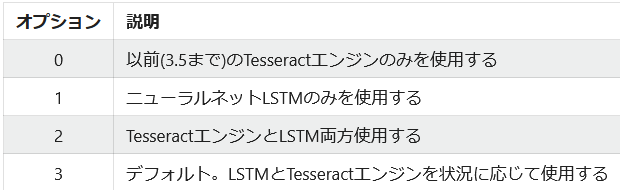
psm (ページセグメンテーションモード)
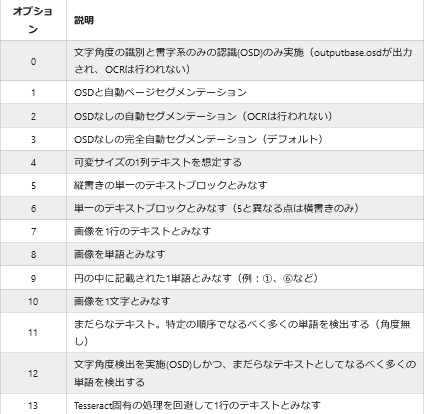
以下の投稿記事を参考にしています。
次章(「比較するサンプル」)で説明しますが、今回はjpeg形式の文字列(英語・数字・日本語の文字)の認識精度を比較するため、`psm`は「6」、`oem`は「1」として設定しました。
比較するサンプル


以上3つの画像ファイルをOCRとOpenAIに読み込ませてみることにしました。
最後の画像の「しらんけど」は大阪のおばちゃんが自信満々に話をした後に発する定型文です。あまり気になさらぬよう・・・
比較結果
以下が比較結果となります。
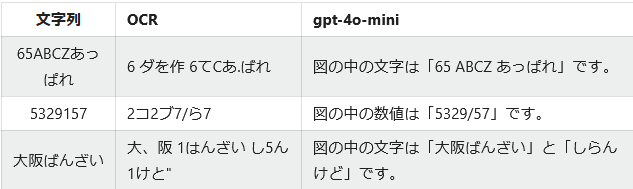
どうでしょうか。今回に限っては断然`gpt-4o-mini`に軍配が上がりました。
ただ、今回の`OCR`はオープンソースのものを使っているため、有償OCRなどであればもっと精度が高まるかもしれません。
おわりに
今回の比較はあくまで`Tesseract`と`gpt-4o-mini`ということで記憶にとどめていただけると幸いです。
今後、社内で「OCRをやりたいんだけど」という引き合いがあったら、`gpt-4o`のことも少し頭に入れておいて、選択肢の1つにしていただけると幸いです。
次回の記事では、宝くじ券の番号をOCRで認識させるプログラムを紹介します。私事で恐縮なのですが、先日宝くじを150枚買ったのですが、券を1つ1つ確認すると歳のせいか手がカサカサになり、紙で切れて血が出てしまいました。OCRを使って当選した券を瞬時に見分けられないか・・・ということで、宝くじ番号を大量に読み込んで、当たり券を判定するプログラムの記事を投稿したいと思います。(券売所の機械で確認してもらえばいいのに、プログラムで実装する必要あるか?・・・💦)
Excelマクロで仕事効率化(初心者向け)(6) | ChatGPTの利用

# はじめに
前回は、生成AI(ChatGPT)のAPIをコールするExcelマクロを作成するに当たり、押さえておくべき基本的なことについて説明しました。
今回は、この知識を基に実際にExcelマクロを作成していこうと思います。
マクロの構成は、前々回で説明しています。
# プログラム
標準モジュールとして`ChatGPTLib` `CPT` `JsonConverter`を設定します。
VBAではこんな風になるかと思います。
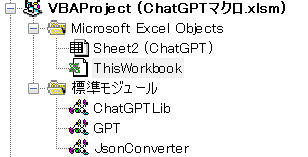
まずは、それぞれのプログラムを以下に示します。
### 標準モジュール(ChatGPTLib)
```VB:ChatGPTLib
Option Explicit
Declare PtrSafe Sub Sleep Lib "kernel32" (ByVal dwMilliseconds As Long)
Public ApiKey As String
' Create system and user messages
Public Function CreateMessages(systemContent As String, userContent As String) As Dictionary()
Dim messages(1) As Dictionary
Set messages(0) = New Dictionary
messages(0).Add "role", "system"
messages(0).Add "content", systemContent
Set messages(1) = New Dictionary
messages(1).Add "role", "user"
messages(1).Add "content", userContent
CreateMessages = messages
End Function
```
あるサイトからダウンロードしたソースコードです。いろいろ関数(Function)があったのですが、今回利用するもののみ抽出しています。
`ChatGPT API`では、「ロール」といって「誰目線でコメントをしているのか?」を設定することができます。この関数では「システム(`system`)」側の文章と「ユーザ(質問者)(`user`)」の文章をデータとして束ねて返却しています。
### 標準モジュール(JsonConverter)
```VB:JsonConverter
''
' VBA-JSON v2.3.1
' (c) Tim Hall - https://github.com/VBA-tools/VBA-JSON
'
' JSON Converter for VBA
'
' Errors:
' 10001 - JSON parse error
'
' @class JsonConverter
' @author tim.hall.engr@gmail.com
' @license MIT (http://www.opensource.org/licenses/mit-license.php)
'' ~~~~~~~~~~~~~~~~~~~~~~~~~~~~~~~~~~~~~~~~~~~~~~~~~~~~~~~~~~~~~~~~~~~~~~ '
'
' Based originally on vba-json (with extensive changes)
' BSD license included below
'
' JSONLib, http://code.google.com/p/vba-json/
'
' Copyright (c) 2013, Ryo Yokoyama
' All rights reserved.
'
' Redistribution and use in source and binary forms, with or without
' modification, are permitted provided that the following conditions are met:
' * Redistributions of source code must retain the above copyright
' notice, this list of conditions and the following disclaimer.
' * Redistributions in binary form must reproduce the above copyright
' notice, this list of conditions and the following disclaimer in the
' documentation and/or other materials provided with the distribution.
' * Neither the name of the <organization> nor the
' names of its contributors may be used to endorse or promote products
' derived from this software without specific prior written permission.
'
' THIS SOFTWARE IS PROVIDED BY THE COPYRIGHT HOLDERS AND CONTRIBUTORS "AS IS" AND
' ANY EXPRESS OR IMPLIED WARRANTIES, INCLUDING, BUT NOT LIMITED TO, THE IMPLIED
' WARRANTIES OF MERCHANTABILITY AND FITNESS FOR A PARTICULAR PURPOSE ARE
' DISCLAIMED. IN NO EVENT SHALL <COPYRIGHT HOLDER> BE LIABLE FOR ANY
' DIRECT, INDIRECT, INCIDENTAL, SPECIAL, EXEMPLARY, OR CONSEQUENTIAL DAMAGES
' (INCLUDING, BUT NOT LIMITED TO, PROCUREMENT OF SUBSTITUTE GOODS OR SERVICES;
' LOSS OF USE, DATA, OR PROFITS; OR BUSINESS INTERRUPTION) HOWEVER CAUSED AND
' ON ANY THEORY OF LIABILITY, WHETHER IN CONTRACT, STRICT LIABILITY, OR TORT
' (INCLUDING NEGLIGENCE OR OTHERWISE) ARISING IN ANY WAY OUT OF THE USE OF THIS
' SOFTWARE, EVEN IF ADVISED OF THE POSSIBILITY OF SUCH DAMAGE.
' ~~~~~~~~~~~~~~~~~~~~~~~~~~~~~~~~~~~~~~~~~~~~~~~~~~~~~~~~~~~~~~~~~~~~~~ '
Option Explicit
' === VBA-UTC Headers
#If Mac Then
#If VBA7 Then
' 64-bit Mac (2016)
Private Declare PtrSafe Function utc_popen Lib "/usr/lib/libc.dylib" Alias "popen" _
(ByVal utc_Command As String, ByVal utc_Mode As String) As LongPtr
Private Declare PtrSafe Function utc_pclose Lib "/usr/lib/libc.dylib" Alias "pclose" _
(ByVal utc_File As LongPtr) As LongPtr
Private Declare PtrSafe Function utc_fread Lib "/usr/lib/libc.dylib" Alias "fread" _
(ByVal utc_Buffer As String, ByVal utc_Size As LongPtr, ByVal utc_Number As LongPtr, ByVal utc_File As LongPtr) As LongPtr
Private Declare PtrSafe Function utc_feof Lib "/usr/lib/libc.dylib" Alias "feof" _
(ByVal utc_File As LongPtr) As LongPtr
#Else
' 32-bit Mac
Private Declare Function utc_popen Lib "libc.dylib" Alias "popen" _
(ByVal utc_Command As String, ByVal utc_Mode As String) As Long
Private Declare Function utc_pclose Lib "libc.dylib" Alias "pclose" _
(ByVal utc_File As Long) As Long
Private Declare Function utc_fread Lib "libc.dylib" Alias "fread" _
(ByVal utc_Buffer As String, ByVal utc_Size As Long, ByVal utc_Number As Long, ByVal utc_File As Long) As Long
Private Declare Function utc_feof Lib "libc.dylib" Alias "feof" _
(ByVal utc_File As Long) As Long
#End If
#ElseIf VBA7 Then
' http://msdn.microsoft.com/en-us/library/windows/desktop/ms724421.aspx
' http://msdn.microsoft.com/en-us/library/windows/desktop/ms724949.aspx
' http://msdn.microsoft.com/en-us/library/windows/desktop/ms725485.aspx
Private Declare PtrSafe Function utc_GetTimeZoneInformation Lib "kernel32" Alias "GetTimeZoneInformation" _
(utc_lpTimeZoneInformation As utc_TIME_ZONE_INFORMATION) As Long
Private Declare PtrSafe Function utc_SystemTimeToTzSpecificLocalTime Lib "kernel32" Alias "SystemTimeToTzSpecificLocalTime" _
(utc_lpTimeZoneInformation As utc_TIME_ZONE_INFORMATION, utc_lpUniversalTime As utc_SYSTEMTIME, utc_lpLocalTime As utc_SYSTEMTIME) As Long
Private Declare PtrSafe Function utc_TzSpecificLocalTimeToSystemTime Lib "kernel32" Alias "TzSpecificLocalTimeToSystemTime" _
(utc_lpTimeZoneInformation As utc_TIME_ZONE_INFORMATION, utc_lpLocalTime As utc_SYSTEMTIME, utc_lpUniversalTime As utc_SYSTEMTIME) As Long
#Else
Private Declare Function utc_GetTimeZoneInformation Lib "kernel32" Alias "GetTimeZoneInformation" _
(utc_lpTimeZoneInformation As utc_TIME_ZONE_INFORMATION) As Long
Private Declare Function utc_SystemTimeToTzSpecificLocalTime Lib "kernel32" Alias "SystemTimeToTzSpecificLocalTime" _
(utc_lpTimeZoneInformation As utc_TIME_ZONE_INFORMATION, utc_lpUniversalTime As utc_SYSTEMTIME, utc_lpLocalTime As utc_SYSTEMTIME) As Long
Private Declare Function utc_TzSpecificLocalTimeToSystemTime Lib "kernel32" Alias "TzSpecificLocalTimeToSystemTime" _
(utc_lpTimeZoneInformation As utc_TIME_ZONE_INFORMATION, utc_lpLocalTime As utc_SYSTEMTIME, utc_lpUniversalTime As utc_SYSTEMTIME) As Long
#End If
#If Mac Then
#If VBA7 Then
Private Type utc_ShellResult
utc_Output As String
utc_ExitCode As LongPtr
End Type
#Else
Private Type utc_ShellResult
utc_Output As String
utc_ExitCode As Long
End Type
#End If
#Else
Private Type utc_SYSTEMTIME
utc_wYear As Integer
utc_wMonth As Integer
utc_wDayOfWeek As Integer
utc_wDay As Integer
utc_wHour As Integer
utc_wMinute As Integer
utc_wSecond As Integer
utc_wMilliseconds As Integer
End Type
Private Type utc_TIME_ZONE_INFORMATION
utc_Bias As Long
utc_StandardName(0 To 31) As Integer
utc_StandardDate As utc_SYSTEMTIME
utc_StandardBias As Long
utc_DaylightName(0 To 31) As Integer
utc_DaylightDate As utc_SYSTEMTIME
utc_DaylightBias As Long
End Type
Private Type json_Options
' VBA only stores 15 significant digits, so any numbers larger than that are truncated
' This can lead to issues when BIGINT's are used (e.g. for Ids or Credit Cards), as they will be invalid above 15 digits
' See: http://support.microsoft.com/kb/269370
'
' By default, VBA-JSON will use String for numbers longer than 15 characters that contain only digits
' to override set `JsonConverter.JsonOptions.UseDoubleForLargeNumbers = True`
UseDoubleForLargeNumbers As Boolean
' The JSON standard requires object keys to be quoted (" or '), use this option to allow unquoted keys
AllowUnquotedKeys As Boolean
' The solidus (/) is not required to be escaped, use this option to escape them as \/ in ConvertToJson
EscapeSolidus As Boolean
End Type
Public JsonOptions As json_Options
' ============================================= '
' Public Methods
' ============================================= '
''
' Convert JSON string to object (Dictionary/Collection)
'
' @method ParseJson
' @param {String} json_String
' @return {Object} (Dictionary or Collection)
' @throws 10001 - JSON parse error
''
Public Function ParseJson(ByVal JsonString As String) As Object
Dim json_Index As Long
json_Index = 1
' Remove vbCr, vbLf, and vbTab from json_String
JsonString = VBA.Replace(VBA.Replace(VBA.Replace(JsonString, VBA.vbCr, ""), VBA.vbLf, ""), VBA.vbTab, "")
json_SkipSpaces JsonString, json_Index
Select Case VBA.Mid$(JsonString, json_Index, 1)
Case "{"
Set ParseJson = json_ParseObject(JsonString, json_Index)
Case "["
Set ParseJson = json_ParseArray(JsonString, json_Index)
Case Else
' Error: Invalid JSON string
Err.Raise 10001, "JSONConverter", json_ParseErrorMessage(JsonString, json_Index, "Expecting '{' or '['")
End Select
End Function
''
' Convert object (Dictionary/Collection/Array) to JSON
'
' @method ConvertToJson
' @param {Variant} JsonValue (Dictionary, Collection, or Array)
' @param {Integer|String} Whitespace "Pretty" print json with given number of spaces per indentation (Integer) or given string
' @return {String}
''
Public Function ConvertToJson(ByVal JsonValue As Variant, Optional ByVal Whitespace As Variant, Optional ByVal json_CurrentIndentation As Long = 0) As String
Dim json_Buffer As String
Dim json_BufferPosition As Long
Dim json_BufferLength As Long
Dim json_Index As Long
Dim json_LBound As Long
Dim json_UBound As Long
Dim json_IsFirstItem As Boolean
Dim json_Index2D As Long
Dim json_LBound2D As Long
Dim json_UBound2D As Long
Dim json_IsFirstItem2D As Boolean
Dim json_Key As Variant
Dim json_Value As Variant
Dim json_DateStr As String
Dim json_Converted As String
Dim json_SkipItem As Boolean
Dim json_PrettyPrint As Boolean
Dim json_Indentation As String
Dim json_InnerIndentation As String
json_LBound = -1
json_UBound = -1
json_IsFirstItem = True
json_LBound2D = -1
json_UBound2D = -1
json_IsFirstItem2D = True
json_PrettyPrint = Not IsMissing(Whitespace)
Select Case VBA.VarType(JsonValue)
Case VBA.vbNull
ConvertToJson = "null"
Case VBA.vbDate
' Date
json_DateStr = ConvertToIso(VBA.CDate(JsonValue))
ConvertToJson = """" & json_DateStr & """"
Case VBA.vbString
' String (or large number encoded as string)
If Not JsonOptions.UseDoubleForLargeNumbers And json_StringIsLargeNumber(JsonValue) Then
ConvertToJson = JsonValue
Else
ConvertToJson = """" & json_Encode(JsonValue) & """"
End If
Case VBA.vbBoolean
If JsonValue Then
ConvertToJson = "true"
Else
ConvertToJson = "false"
End If
Case VBA.vbArray To VBA.vbArray + VBA.vbByte
If json_PrettyPrint Then
If VBA.VarType(Whitespace) = VBA.vbString Then
json_Indentation = VBA.String$(json_CurrentIndentation + 1, Whitespace)
json_InnerIndentation = VBA.String$(json_CurrentIndentation + 2, Whitespace)
Else
json_Indentation = VBA.Space$*1 Then
json_Converted = "null"
End If
End If
If json_PrettyPrint Then
json_Converted = vbNewLine & json_InnerIndentation & json_Converted
End If
json_BufferAppend json_Buffer, json_Converted, json_BufferPosition, json_BufferLength
Next json_Index2D
If json_PrettyPrint Then
json_BufferAppend json_Buffer, vbNewLine, json_BufferPosition, json_BufferLength
End If
json_BufferAppend json_Buffer, json_Indentation & "]", json_BufferPosition, json_BufferLength
json_IsFirstItem2D = True
Else
' 1D Array
json_Converted = ConvertToJson(JsonValue(json_Index), Whitespace, json_CurrentIndentation + 1)
' For Arrays/Collections, undefined (Empty/Nothing) is treated as null
If json_Converted = "" Then
' (nest to only check if converted = "")
If json_IsUndefined(JsonValue(json_Index)) Then
json_Converted = "null"
End If
End If
If json_PrettyPrint Then
json_Converted = vbNewLine & json_Indentation & json_Converted
End If
json_BufferAppend json_Buffer, json_Converted, json_BufferPosition, json_BufferLength
End If
Next json_Index
End If
On Error GoTo 0
If json_PrettyPrint Then
json_BufferAppend json_Buffer, vbNewLine, json_BufferPosition, json_BufferLength
If VBA.VarType(Whitespace) = VBA.vbString Then
json_Indentation = VBA.String$(json_CurrentIndentation, Whitespace)
Else
json_Indentation = VBA.Space$(json_CurrentIndentation * Whitespace)
End If
End If
json_BufferAppend json_Buffer, json_Indentation & "]", json_BufferPosition, json_BufferLength
ConvertToJson = json_BufferToString(json_Buffer, json_BufferPosition)
' Dictionary or Collection
Case VBA.vbObject
If json_PrettyPrint Then
If VBA.VarType(Whitespace) = VBA.vbString Then
json_Indentation = VBA.String$(json_CurrentIndentation + 1, Whitespace)
Else
json_Indentation = VBA.Space$*2
Else
json_SkipItem = False
End If
If Not json_SkipItem Then
If json_IsFirstItem Then
json_IsFirstItem = False
Else
json_BufferAppend json_Buffer, ",", json_BufferPosition, json_BufferLength
End If
If json_PrettyPrint Then
json_Converted = vbNewLine & json_Indentation & """" & json_Key & """: " & json_Converted
Else
json_Converted = """" & json_Key & """:" & json_Converted
End If
json_BufferAppend json_Buffer, json_Converted, json_BufferPosition, json_BufferLength
End If
Next json_Key
If json_PrettyPrint Then
json_BufferAppend json_Buffer, vbNewLine, json_BufferPosition, json_BufferLength
If VBA.VarType(Whitespace) = VBA.vbString Then
json_Indentation = VBA.String$(json_CurrentIndentation, Whitespace)
Else
json_Indentation = VBA.Space$(json_CurrentIndentation * Whitespace)
End If
End If
json_BufferAppend json_Buffer, json_Indentation & "}", json_BufferPosition, json_BufferLength
' Collection
ElseIf VBA.TypeName(JsonValue) = "Collection" Then
json_BufferAppend json_Buffer, "[", json_BufferPosition, json_BufferLength
For Each json_Value In JsonValue
If json_IsFirstItem Then
json_IsFirstItem = False
Else
json_BufferAppend json_Buffer, ",", json_BufferPosition, json_BufferLength
End If
json_Converted = ConvertToJson(json_Value, Whitespace, json_CurrentIndentation + 1)
' For Arrays/Collections, undefined (Empty/Nothing) is treated as null
If json_Converted = "" Then
' (nest to only check if converted = "")
If json_IsUndefined(json_Value) Then
json_Converted = "null"
End If
End If
If json_PrettyPrint Then
json_Converted = vbNewLine & json_Indentation & json_Converted
End If
json_BufferAppend json_Buffer, json_Converted, json_BufferPosition, json_BufferLength
Next json_Value
If json_PrettyPrint Then
json_BufferAppend json_Buffer, vbNewLine, json_BufferPosition, json_BufferLength
If VBA.VarType(Whitespace) = VBA.vbString Then
json_Indentation = VBA.String$(json_CurrentIndentation, Whitespace)
Else
json_Indentation = VBA.Space$(json_CurrentIndentation * Whitespace)
End If
End If
json_BufferAppend json_Buffer, json_Indentation & "]", json_BufferPosition, json_BufferLength
End If
ConvertToJson = json_BufferToString(json_Buffer, json_BufferPosition)
Case VBA.vbInteger, VBA.vbLong, VBA.vbSingle, VBA.vbDouble, VBA.vbCurrency, VBA.vbDecimal
' Number (use decimals for numbers)
ConvertToJson = VBA.Replace(JsonValue, ",", ".")
Case Else
' vbEmpty, vbError, vbDataObject, vbByte, vbUserDefinedType
' Use VBA's built-in to-string
On Error Resume Next
ConvertToJson = JsonValue
On Error GoTo 0
End Select
End Function
' ============================================= '
' Private Functions
' ============================================= '
Private Function json_ParseObject(json_String As String, ByRef json_Index As Long) As Dictionary
Dim json_Key As String
Dim json_NextChar As String
Set json_ParseObject = New Dictionary
json_SkipSpaces json_String, json_Index
If VBA.Mid$(json_String, json_Index, 1) <> "{" Then
Err.Raise 10001, "JSONConverter", json_ParseErrorMessage(json_String, json_Index, "Expecting '{'")
Else
json_Index = json_Index + 1
Do
json_SkipSpaces json_String, json_Index
If VBA.Mid$(json_String, json_Index, 1) = "}" Then
json_Index = json_Index + 1
Exit Function
ElseIf VBA.Mid$(json_String, json_Index, 1) = "," Then
json_Index = json_Index + 1
json_SkipSpaces json_String, json_Index
End If
json_Key = json_ParseKey(json_String, json_Index)
json_NextChar = json_Peek(json_String, json_Index)
If json_NextChar = "[" Or json_NextChar = "{" Then
Set json_ParseObject.Item(json_Key) = json_ParseValue(json_String, json_Index)
Else
json_ParseObject.Item(json_Key) = json_ParseValue(json_String, json_Index)
End If
Loop
End If
End Function
Private Function json_ParseArray(json_String As String, ByRef json_Index As Long) As Collection
Set json_ParseArray = New Collection
json_SkipSpaces json_String, json_Index
If VBA.Mid$(json_String, json_Index, 1) <> "[" Then
Err.Raise 10001, "JSONConverter", json_ParseErrorMessage(json_String, json_Index, "Expecting '['")
Else
json_Index = json_Index + 1
Do
json_SkipSpaces json_String, json_Index
If VBA.Mid$(json_String, json_Index, 1) = "]" Then
json_Index = json_Index + 1
Exit Function
ElseIf VBA.Mid$(json_String, json_Index, 1) = "," Then
json_Index = json_Index + 1
json_SkipSpaces json_String, json_Index
End If
json_ParseArray.Add json_ParseValue(json_String, json_Index)
Loop
End If
End Function
Private Function json_ParseValue(json_String As String, ByRef json_Index As Long) As Variant
json_SkipSpaces json_String, json_Index
Select Case VBA.Mid$(json_String, json_Index, 1)
Case "{"
Set json_ParseValue = json_ParseObject(json_String, json_Index)
Case "["
Set json_ParseValue = json_ParseArray(json_String, json_Index)
Case """", "'"
json_ParseValue = json_ParseString(json_String, json_Index)
Case Else
If VBA.Mid$(json_String, json_Index, 4) = "true" Then
json_ParseValue = True
json_Index = json_Index + 4
ElseIf VBA.Mid$(json_String, json_Index, 5) = "false" Then
json_ParseValue = False
json_Index = json_Index + 5
ElseIf VBA.Mid$(json_String, json_Index, 4) = "null" Then
json_ParseValue = Null
json_Index = json_Index + 4
ElseIf VBA.InStr("+-0123456789", VBA.Mid$(json_String, json_Index, 1)) Then
json_ParseValue = json_ParseNumber(json_String, json_Index)
Else
Err.Raise 10001, "JSONConverter", json_ParseErrorMessage(json_String, json_Index, "Expecting 'STRING', 'NUMBER', null, true, false, '{', or '['")
End If
End Select
End Function
Private Function json_ParseString(json_String As String, ByRef json_Index As Long) As String
Dim json_Quote As String
Dim json_Char As String
Dim json_Code As String
Dim json_Buffer As String
Dim json_BufferPosition As Long
Dim json_BufferLength As Long
json_SkipSpaces json_String, json_Index
' Store opening quote to look for matching closing quote
json_Quote = VBA.Mid$(json_String, json_Index, 1)
json_Index = json_Index + 1
Do While json_Index > 0 And json_Index <= Len(json_String)
json_Char = VBA.Mid$(json_String, json_Index, 1)
Select Case json_Char
Case "\"
' Escaped string, \\, or \/
json_Index = json_Index + 1
json_Char = VBA.Mid$(json_String, json_Index, 1)
Select Case json_Char
Case """", "\", "/", "'"
json_BufferAppend json_Buffer, json_Char, json_BufferPosition, json_BufferLength
json_Index = json_Index + 1
Case "b"
json_BufferAppend json_Buffer, vbBack, json_BufferPosition, json_BufferLength
json_Index = json_Index + 1
Case "f"
json_BufferAppend json_Buffer, vbFormFeed, json_BufferPosition, json_BufferLength
json_Index = json_Index + 1
Case "n"
json_BufferAppend json_Buffer, vbCrLf, json_BufferPosition, json_BufferLength
json_Index = json_Index + 1
Case "r"
json_BufferAppend json_Buffer, vbCr, json_BufferPosition, json_BufferLength
json_Index = json_Index + 1
Case "t"
json_BufferAppend json_Buffer, vbTab, json_BufferPosition, json_BufferLength
json_Index = json_Index + 1
Case "u"
' Unicode character escape (e.g. \u00a9 = Copyright)
json_Index = json_Index + 1
json_Code = VBA.Mid$(json_String, json_Index, 4)
json_BufferAppend json_Buffer, VBA.ChrW(VBA.val("&h" + json_Code)), json_BufferPosition, json_BufferLength
json_Index = json_Index + 4
End Select
Case json_Quote
json_ParseString = json_BufferToString(json_Buffer, json_BufferPosition)
json_Index = json_Index + 1
Exit Function
Case Else
json_BufferAppend json_Buffer, json_Char, json_BufferPosition, json_BufferLength
json_Index = json_Index + 1
End Select
Loop
End Function
Private Function json_ParseNumber(json_String As String, ByRef json_Index As Long) As Variant
Dim json_Char As String
Dim json_Value As String
Dim json_IsLargeNumber As Boolean
json_SkipSpaces json_String, json_Index
Do While json_Index > 0 And json_Index <= Len(json_String)
json_Char = VBA.Mid$(json_String, json_Index, 1)
If VBA.InStr("+-0123456789.eE", json_Char) Then
' Unlikely to have massive number, so use simple append rather than buffer here
json_Value = json_Value & json_Char
json_Index = json_Index + 1
Else
' Excel only stores 15 significant digits, so any numbers larger than that are truncated
' This can lead to issues when BIGINT's are used (e.g. for Ids or Credit Cards), as they will be invalid above 15 digits
' See: http://support.microsoft.com/kb/269370
'
' Fix: Parse -> String, Convert -> String longer than 15/16 characters containing only numbers and decimal points -> Number
' (decimal doesn't factor into significant digit count, so if present check for 15 digits + decimal = 16)
json_IsLargeNumber = IIf(InStr(json_Value, "."), Len(json_Value) >= 17, Len(json_Value) >= 16)
If Not JsonOptions.UseDoubleForLargeNumbers And json_IsLargeNumber Then
json_ParseNumber = json_Value
Else
' VBA.Val does not use regional settings, so guard for comma is not needed
json_ParseNumber = VBA.val(json_Value)
End If
Exit Function
End If
Loop
End Function
Private Function json_ParseKey(json_String As String, ByRef json_Index As Long) As String
' Parse key with single or double quotes
If VBA.Mid$(json_String, json_Index, 1) = """" Or VBA.Mid$(json_String, json_Index, 1) = "'" Then
json_ParseKey = json_ParseString(json_String, json_Index)
ElseIf JsonOptions.AllowUnquotedKeys Then
Dim json_Char As String
Do While json_Index > 0 And json_Index <= Len(json_String)
json_Char = VBA.Mid$(json_String, json_Index, 1)
If (json_Char <> " ") And (json_Char <> ":") Then
json_ParseKey = json_ParseKey & json_Char
json_Index = json_Index + 1
Else
Exit Do
End If
Loop
Else
Err.Raise 10001, "JSONConverter", json_ParseErrorMessage(json_String, json_Index, "Expecting '""' or '''")
End If
' Check for colon and skip if present or throw if not present
json_SkipSpaces json_String, json_Index
If VBA.Mid$(json_String, json_Index, 1) <> ":" Then
Err.Raise 10001, "JSONConverter", json_ParseErrorMessage(json_String, json_Index, "Expecting ':'")
Else
json_Index = json_Index + 1
End If
End Function
Private Function json_IsUndefined(ByVal json_Value As Variant) As Boolean
' Empty / Nothing -> undefined
Select Case VBA.VarType(json_Value)
Case VBA.vbEmpty
json_IsUndefined = True
Case VBA.vbObject
Select Case VBA.TypeName(json_Value)
Case "Empty", "Nothing"
json_IsUndefined = True
End Select
End Select
End Function
Private Function json_Encode(ByVal json_Text As Variant) As String
' Reference: http://www.ietf.org/rfc/rfc4627.txt
' Escape: ", \, /, backspace, form feed, line feed, carriage return, tab
Dim json_Index As Long
Dim json_Char As String
Dim json_AscCode As Long
Dim json_Buffer As String
Dim json_BufferPosition As Long
Dim json_BufferLength As Long
For json_Index = 1 To VBA.Len(json_Text)
json_Char = VBA.Mid$(json_Text, json_Index, 1)
json_AscCode = VBA.AscW(json_Char)
' When AscW returns a negative number, it returns the twos complement form of that number.
' To convert the twos complement notation into normal binary notation, add 0xFFF to the return result.
' https://support.microsoft.com/en-us/kb/272138
If json_AscCode < 0 Then
json_AscCode = json_AscCode + 65536
End If
' From spec, ", \, and control characters must be escaped (solidus is optional)
Select Case json_AscCode
Case 34
' " -> 34 -> \"
json_Char = "\"""
Case 92
' \ -> 92 -> \\
json_Char = "\\"
Case 47
' / -> 47 -> \/ (optional)
If JsonOptions.EscapeSolidus Then
json_Char = "\/"
End If
Case 8
' backspace -> 8 -> \b
json_Char = "\b"
Case 12
' form feed -> 12 -> \f
json_Char = "\f"
Case 10
' line feed -> 10 -> \n
json_Char = "\n"
Case 13
' carriage return -> 13 -> \r
json_Char = "\r"
Case 9
' tab -> 9 -> \t
json_Char = "\t"
Case 0 To 31, 127 To 65535
' Non-ascii characters -> convert to 4-digit hex
json_Char = "\u" & VBA.Right$("0000" & VBA.Hex$(json_AscCode), 4)
End Select
json_BufferAppend json_Buffer, json_Char, json_BufferPosition, json_BufferLength
Next json_Index
json_Encode = json_BufferToString(json_Buffer, json_BufferPosition)
End Function
Private Function json_Peek(json_String As String, ByVal json_Index As Long, Optional json_NumberOfCharacters As Long = 1) As String
' "Peek" at the next number of characters without incrementing json_Index (ByVal instead of ByRef)
json_SkipSpaces json_String, json_Index
json_Peek = VBA.Mid$(json_String, json_Index, json_NumberOfCharacters)
End Function
Private Sub json_SkipSpaces(json_String As String, ByRef json_Index As Long)
' Increment index to skip over spaces
Do While json_Index > 0 And json_Index <= VBA.Len(json_String) And VBA.Mid$(json_String, json_Index, 1) = " "
json_Index = json_Index + 1
Loop
End Sub
Private Function json_StringIsLargeNumber(json_String As Variant) As Boolean
' Check if the given string is considered a "large number"
' (See json_ParseNumber)
Dim json_Length As Long
Dim json_CharIndex As Long
json_Length = VBA.Len(json_String)
' Length with be at least 16 characters and assume will be less than 100 characters
If json_Length >= 16 And json_Length <= 100 Then
Dim json_CharCode As String
json_StringIsLargeNumber = True
For json_CharIndex = 1 To json_Length
json_CharCode = VBA.Asc(VBA.Mid$(json_String, json_CharIndex, 1))
Select Case json_CharCode
' Look for .|0-9|E|e
Case 46, 48 To 57, 69, 101
' Continue through characters
Case Else
json_StringIsLargeNumber = False
Exit Function
End Select
Next json_CharIndex
End If
End Function
Private Function json_ParseErrorMessage(json_String As String, ByRef json_Index As Long, ErrorMessage As String)
' Provide detailed parse error message, including details of where and what occurred
'
' Example:
' Error parsing JSON:
' {"abcde":True}
' ^
' Expecting 'STRING', 'NUMBER', null, true, false, '{', or '['
Dim json_StartIndex As Long
Dim json_StopIndex As Long
' Include 10 characters before and after error (if possible)
json_StartIndex = json_Index - 10
json_StopIndex = json_Index + 10
If json_StartIndex <= 0 Then
json_StartIndex = 1
End If
If json_StopIndex > VBA.Len(json_String) Then
json_StopIndex = VBA.Len(json_String)
End If
json_ParseErrorMessage = "Error parsing JSON:" & VBA.vbNewLine & _
VBA.Mid$(json_String, json_StartIndex, json_StopIndex - json_StartIndex + 1) & VBA.vbNewLine & _
VBA.Space$(json_Index - json_StartIndex) & "^" & VBA.vbNewLine & _
ErrorMessage
End Function
Private Sub json_BufferAppend(ByRef json_Buffer As String, _
ByRef json_Append As Variant, _
ByRef json_BufferPosition As Long, _
ByRef json_BufferLength As Long)
' VBA can be slow to append strings due to allocating a new string for each append
' Instead of using the traditional append, allocate a large empty string and then copy string at append position
'
' Example:
' Buffer: "abc "
' Append: "def"
' Buffer Position: 3
' Buffer Length: 5
'
' Buffer position + Append length > Buffer length -> Append chunk of blank space to buffer
' Buffer: "abc "
' Buffer Length: 10
'
' Put "def" into buffer at position 3 (0-based)
' Buffer: "abcdef "
'
' Approach based on cStringBuilder from vbAccelerator
' http://www.vbaccelerator.com/home/VB/Code/Techniques/RunTime_Debug_Tracing/VB6_Tracer_Utility_zip_cStringBuilder_cls.asp
'
' and clsStringAppend from Philip Swannell
' https://github.com/VBA-tools/VBA-JSON/pull/82
Dim json_AppendLength As Long
Dim json_LengthPlusPosition As Long
json_AppendLength = VBA.Len(json_Append)
json_LengthPlusPosition = json_AppendLength + json_BufferPosition
If json_LengthPlusPosition > json_BufferLength Then
' Appending would overflow buffer, add chunk
' (double buffer length or append length, whichever is bigger)
Dim json_AddedLength As Long
json_AddedLength = IIf(json_AppendLength > json_BufferLength, json_AppendLength, json_BufferLength)
json_Buffer = json_Buffer & VBA.Space$(json_AddedLength)
json_BufferLength = json_BufferLength + json_AddedLength
End If
' Note: Namespacing with VBA.Mid$ doesn't work properly here, throwing compile error:
' Function call on left-hand side of assignment must return Variant or Object
Mid$(json_Buffer, json_BufferPosition + 1, json_AppendLength) = CStr(json_Append)
json_BufferPosition = json_BufferPosition + json_AppendLength
End Sub
Private Function json_BufferToString(ByRef json_Buffer As String, ByVal json_BufferPosition As Long) As String
If json_BufferPosition > 0 Then
json_BufferToString = VBA.Left$(json_Buffer, json_BufferPosition)
End If
End Function
''
' VBA-UTC v1.0.6
' (c) Tim Hall - https://github.com/VBA-tools/VBA-UtcConverter
'
' UTC/ISO 8601 Converter for VBA
'
' Errors:
' 10011 - UTC parsing error
' 10012 - UTC conversion error
' 10013 - ISO 8601 parsing error
' 10014 - ISO 8601 conversion error
'
' @module UtcConverter
' @author tim.hall.engr@gmail.com
' @license MIT (http://www.opensource.org/licenses/mit-license.php)
'' ~~~~~~~~~~~~~~~~~~~~~~~~~~~~~~~~~~~~~~~~~~~~~~~~~~~~~~~~~~~~~~~~~~~~~~ '
' (Declarations moved to top)
' ============================================= '
' Public Methods
' ============================================= '
''
' Parse UTC date to local date
'
' @method ParseUtc
' @param {Date} UtcDate
' @return {Date} Local date
' @throws 10011 - UTC parsing error
''
Public Function ParseUtc(utc_UtcDate As Date) As Date
On Error GoTo utc_ErrorHandling
#If Mac Then
ParseUtc = utc_ConvertDate(utc_UtcDate)
#Else
Dim utc_TimeZoneInfo As utc_TIME_ZONE_INFORMATION
Dim utc_LocalDate As utc_SYSTEMTIME
utc_GetTimeZoneInformation utc_TimeZoneInfo
utc_SystemTimeToTzSpecificLocalTime utc_TimeZoneInfo, utc_DateToSystemTime(utc_UtcDate), utc_LocalDate
ParseUtc = utc_SystemTimeToDate(utc_LocalDate)
#End If
Exit Function
utc_ErrorHandling:
Err.Raise 10011, "UtcConverter.ParseUtc", "UTC parsing error: " & Err.Number & " - " & Err.Description
End Function
''
' Convert local date to UTC date
'
' @method ConvertToUrc
' @param {Date} utc_LocalDate
' @return {Date} UTC date
' @throws 10012 - UTC conversion error
''
Public Function ConvertToUtc(utc_LocalDate As Date) As Date
On Error GoTo utc_ErrorHandling
#If Mac Then
ConvertToUtc = utc_ConvertDate(utc_LocalDate, utc_ConvertToUtc:=True)
#Else
Dim utc_TimeZoneInfo As utc_TIME_ZONE_INFORMATION
Dim utc_UtcDate As utc_SYSTEMTIME
utc_GetTimeZoneInformation utc_TimeZoneInfo
utc_TzSpecificLocalTimeToSystemTime utc_TimeZoneInfo, utc_DateToSystemTime(utc_LocalDate), utc_UtcDate
ConvertToUtc = utc_SystemTimeToDate(utc_UtcDate)
#End If
Exit Function
utc_ErrorHandling:
Err.Raise 10012, "UtcConverter.ConvertToUtc", "UTC conversion error: " & Err.Number & " - " & Err.Description
End Function
''
' Parse ISO 8601 date string to local date
'
' @method ParseIso
' @param {Date} utc_IsoString
' @return {Date} Local date
' @throws 10013 - ISO 8601 parsing error
''
Public Function ParseIso(utc_IsoString As String) As Date
On Error GoTo utc_ErrorHandling
Dim utc_Parts() As String
Dim utc_DateParts() As String
Dim utc_TimeParts() As String
Dim utc_OffsetIndex As Long
Dim utc_HasOffset As Boolean
Dim utc_NegativeOffset As Boolean
Dim utc_OffsetParts() As String
Dim utc_Offset As Date
utc_Parts = VBA.Split(utc_IsoString, "T")
utc_DateParts = VBA.Split(utc_Parts(0), "-")
ParseIso = VBA.DateSerial(VBA.CInt(utc_DateParts(0)), VBA.CInt(utc_DateParts(1)), VBA.CInt(utc_DateParts(2)))
If UBound(utc_Parts) > 0 Then
If VBA.InStr(utc_Parts(1), "Z") Then
utc_TimeParts = VBA.Split(VBA.Replace(utc_Parts(1), "Z", ""), ":")
Else
utc_OffsetIndex = VBA.InStr(1, utc_Parts(1), "+")
If utc_OffsetIndex = 0 Then
utc_NegativeOffset = True
utc_OffsetIndex = VBA.InStr(1, utc_Parts(1), "-")
End If
If utc_OffsetIndex > 0 Then
utc_HasOffset = True
utc_TimeParts = VBA.Split(VBA.Left$(utc_Parts(1), utc_OffsetIndex - 1), ":")
utc_OffsetParts = VBA.Split(VBA.Right$(utc_Parts(1), Len(utc_Parts(1)) - utc_OffsetIndex), ":")
Select Case UBound(utc_OffsetParts)
Case 0
utc_Offset = TimeSerial(VBA.CInt(utc_OffsetParts(0)), 0, 0)
Case 1
utc_Offset = TimeSerial(VBA.CInt(utc_OffsetParts(0)), VBA.CInt(utc_OffsetParts(1)), 0)
Case 2
' VBA.Val does not use regional settings, use for seconds to avoid decimal/comma issues
utc_Offset = TimeSerial(VBA.CInt(utc_OffsetParts(0)), VBA.CInt(utc_OffsetParts(1)), Int(VBA.val(utc_OffsetParts(2))))
End Select
If utc_NegativeOffset Then: utc_Offset = -utc_Offset
Else
utc_TimeParts = VBA.Split(utc_Parts(1), ":")
End If
End If
Select Case UBound(utc_TimeParts)
Case 0
ParseIso = ParseIso + VBA.TimeSerial(VBA.CInt(utc_TimeParts(0)), 0, 0)
Case 1
ParseIso = ParseIso + VBA.TimeSerial(VBA.CInt(utc_TimeParts(0)), VBA.CInt(utc_TimeParts(1)), 0)
Case 2
' VBA.Val does not use regional settings, use for seconds to avoid decimal/comma issues
ParseIso = ParseIso + VBA.TimeSerial(VBA.CInt(utc_TimeParts(0)), VBA.CInt(utc_TimeParts(1)), Int(VBA.val(utc_TimeParts(2))))
End Select
ParseIso = ParseUtc(ParseIso)
If utc_HasOffset Then
ParseIso = ParseIso - utc_Offset
End If
End If
Exit Function
utc_ErrorHandling:
Err.Raise 10013, "UtcConverter.ParseIso", "ISO 8601 parsing error for " & utc_IsoString & ": " & Err.Number & " - " & Err.Description
End Function
''
' Convert local date to ISO 8601 string
'
' @method ConvertToIso
' @param {Date} utc_LocalDate
' @return {Date} ISO 8601 string
' @throws 10014 - ISO 8601 conversion error
''
Public Function ConvertToIso(utc_LocalDate As Date) As String
On Error GoTo utc_ErrorHandling
ConvertToIso = VBA.Format$(ConvertToUtc(utc_LocalDate), "yyyy-mm-ddTHH:mm:ss.000Z")
Exit Function
utc_ErrorHandling:
Err.Raise 10014, "UtcConverter.ConvertToIso", "ISO 8601 conversion error: " & Err.Number & " - " & Err.Description
End Function
' ============================================= '
' Private Functions
' ============================================= '
#If Mac Then
Private Function utc_ConvertDate(utc_Value As Date, Optional utc_ConvertToUtc As Boolean = False) As Date
Dim utc_ShellCommand As String
Dim utc_Result As utc_ShellResult
Dim utc_Parts() As String
Dim utc_DateParts() As String
Dim utc_TimeParts() As String
If utc_ConvertToUtc Then
utc_ShellCommand = "date -ur `date -jf '%Y-%m-%d %H:%M:%S' " & _
"'" & VBA.Format$(utc_Value, "yyyy-mm-dd HH:mm:ss") & "' " & _
" +'%s'` +'%Y-%m-%d %H:%M:%S'"
Else
utc_ShellCommand = "date -jf '%Y-%m-%d %H:%M:%S %z' " & _
"'" & VBA.Format$(utc_Value, "yyyy-mm-dd HH:mm:ss") & " +0000' " & _
"+'%Y-%m-%d %H:%M:%S'"
End If
utc_Result = utc_ExecuteInShell(utc_ShellCommand)
If utc_Result.utc_Output = "" Then
Err.Raise 10015, "UtcConverter.utc_ConvertDate", "'date' command failed"
Else
utc_Parts = Split(utc_Result.utc_Output, " ")
utc_DateParts = Split(utc_Parts(0), "-")
utc_TimeParts = Split(utc_Parts(1), ":")
utc_ConvertDate = DateSerial(utc_DateParts(0), utc_DateParts(1), utc_DateParts(2)) + _
TimeSerial(utc_TimeParts(0), utc_TimeParts(1), utc_TimeParts(2))
End If
End Function
Private Function utc_ExecuteInShell(utc_ShellCommand As String) As utc_ShellResult
#If VBA7 Then
Dim utc_File As LongPtr
Dim utc_Read As LongPtr
#Else
Dim utc_File As Long
Dim utc_Read As Long
#End If
Dim utc_Chunk As String
On Error GoTo utc_ErrorHandling
utc_File = utc_popen(utc_ShellCommand, "r")
If utc_File = 0 Then: Exit Function
Do While utc_feof(utc_File) = 0
utc_Chunk = VBA.Space$(50)
utc_Read = CLng(utc_fread(utc_Chunk, 1, Len(utc_Chunk) - 1, utc_File))
If utc_Read > 0 Then
utc_Chunk = VBA.Left$(utc_Chunk, CLng(utc_Read))
utc_ExecuteInShell.utc_Output = utc_ExecuteInShell.utc_Output & utc_Chunk
End If
Loop
utc_ErrorHandling:
utc_ExecuteInShell.utc_ExitCode = CLng(utc_pclose(utc_File))
End Function
#Else
Private Function utc_DateToSystemTime(utc_Value As Date) As utc_SYSTEMTIME
utc_DateToSystemTime.utc_wYear = VBA.Year(utc_Value)
utc_DateToSystemTime.utc_wMonth = VBA.Month(utc_Value)
utc_DateToSystemTime.utc_wDay = VBA.Day(utc_Value)
utc_DateToSystemTime.utc_wHour = VBA.Hour(utc_Value)
utc_DateToSystemTime.utc_wMinute = VBA.Minute(utc_Value)
utc_DateToSystemTime.utc_wSecond = VBA.Second(utc_Value)
utc_DateToSystemTime.utc_wMilliseconds = 0
End Function
Private Function utc_SystemTimeToDate(utc_Value As utc_SYSTEMTIME) As Date
utc_SystemTimeToDate = DateSerial(utc_Value.utc_wYear, utc_Value.utc_wMonth, utc_Value.utc_wDay) + _
TimeSerial(utc_Value.utc_wHour, utc_Value.utc_wMinute, utc_Value.utc_wSecond)
End Function
#End If
```
この関数もあるサイトからダウンロードしたソースコードです。
良く分からないので、このままコピー&ペーストして、`JsonConverter`を作っちゃってください。
このプログラムのおかけで、エラーハンドリングや文字列調整などを意識しないでプログラミングができます。
作成者のTim Hallさん、ありがとうございます。
1つ注意なのですが、このプログラムを商用などで利用する場合は、著作権侵害の可能性があるので、一度以下のURLで確認してみてください。(英語なので機械翻訳して確認すればよいかと思います。)
### 標準モジュール(ChatGPT)
このプログラムが、今回コーディングしたメインの部分です。
```VB:GPT
Option Explicit
Public Const ApiKey As String = "sk-proj-****************************************"
Public GPTmodel As String
Public Const GPT_3_MODEL = "gpt-3.5-turbo-1106"
Public Const GPT_4_MODEL = "gpt-4-1106-preview"
Private Function ChatGPT(text As String, _
Optional RoleSystem As String, _
Optional temperature As Double = 0.4, _
Optional maxTokens As Long = 2000, _
Optional Wait As Long = 60, _
Optional model As String) As String
Dim messages() As Dictionary
Dim body As New Dictionary
Dim Rspns As String
'' モデル設定
model = GPTmodel
'' エスケープキー除去
text = EscapeJSON(text)
RoleSystem = EscapeJSON(RoleSystem)
'' メッセージをJSON形式に合わせる
messages = ChatGPTLib.CreateMessages(RoleSystem, text)
'' JSON作成
body.Add "model", model
body.Add "messages", messages
body.Add "max_tokens", maxTokens
body.Add "temperature", temperature
body.Add "top_p", 1
Debug.Print JsonConverter.ConvertToJson(body)
'' API送信
REQ_START:
Dim Xmlhttp As Object
Set Xmlhttp = CreateObject("MSXML2.XMLHTTP")
With Xmlhttp
.Open "POST", "https://api.openai.com/v1/chat/completions"
.setRequestHeader "Content-Type", "application/json"
.setRequestHeader "Authorization", "Bearer " & ApiKey
.send JsonConverter.ConvertToJson(body)
Dim StartTime
StartTime = Timer
Do
DoEvents
If Xmlhttp.readyState = 4 Then Exit Do
If Timer - StartTime > Wait Then
Debug.Print "■" & Wait & "sec no responce → again request"
Set Xmlhttp = Nothing
GoTo REQ_START
End If
Loop
'' JSONを文字列からインスタンスにパースをして、返答部分だけ抜き取り出力
Dim jsonObj As Object
Set jsonObj = JsonConverter.ParseJson(Xmlhttp.responseText)
Debug.Print jsonObj("choices")(1)("message")("content")
Rspns = jsonObj("choices")(1)("message")("content")
Debug.Print Left(Rspns, 400)
End With
ChatGPT = Rspns
End Function
Private Function EscapeJSON(S As String) As String
Dim i As Integer
S = Replace(S, "\", "\\") ' バックスラッシュ
S = Replace(S, "/", "\/") ' スラッシュ
S = Replace(S, Chr(8), "\b") ' vbBack: バックスペース
S = Replace(S, Chr(9), "\t") ' vbTab: 水平タブ
S = Replace(S, Chr(10), "\n") ' vbLf: ラインフィード
S = Replace(S, Chr(11), "\t") ' vbVerticalTab: 垂直タブ
S = Replace(S, Chr(12), "\f") ' vbFormFeed: フォームフィード
S = Replace(S, Chr(13), "\r") ' vbCr: キャリッジリターン
S = Replace(S, Chr(34), "\" & Chr(34)) ' ダブルクォート
S = Replace(S, vbNewLine, "\n") ' vbNewLine: 環境に応じた改行記号
For i = 0 To 31
If i < 8 Or i > 13 Then 'エスケープ済み以外
S = Replace(S, Chr(i), "")
End If
Next i
EscapeJSON = S
End Function
Private Function SetGPTmodel() As Long
Dim MyRtn, n
MyRtn = InputBox("Chat-GPTのモデルを設定してください" & vbCrLf & _
" 1:gpt-4-1106-preview" & vbCrLf & " 2:gpt-3.5-turbo-1106", "OpenAI", 2)
GPTmodel = ""
SetGPTmodel = 0
n = val(StrConv(MyRtn, vbNarrow))
If IsNumeric(n) Then
If n = 1 Then
GPTmodel = GPT_4_MODEL
ElseIf n = 2 Then
GPTmodel = GPT_3_MODEL
Else
GPTmodel = GPT_3_MODEL
End If
End If
If GPTmodel = "" Then
MsgBox "Chat-GPTのモデルが指定されていません", , "OpenAI"
SetGPTmodel = -1
End If
End Function
Public Sub CallGPT()
Dim rec As Long
rec = SetGPTmodel
If rec = 0 Then
[C7] = "ChatGPTにリクエスト中・・・"
[C7] = ChatGPT([C6], [C5], [C4])
End If
End Sub
```
この標準モジュールには、`CallGPT` `SetGPTmodel` `EscapeJSON` `ChatGPT`の関数があります。
それぞれについてザックリ説明します。直ぐに動かしたいだけという方は、この内容を読むのを無視していただいて構いません。
CallGPT
エクセルシートの特定のセルの中に書かれた内容を`ChatGPT`に渡す関数です。4つの関数の中で唯一`Public`となっているため、外部のモジュールなどから呼ばれる関数は唯一この関数だけです。
SetGPTmodule
`ChatGPT3`にするか、それとも`ChatGPT4`にするかなどを決めて設定するための関数です。選択するためのダイアログを表示させます。`CallGPT`で呼ばれています。
EscapeJSON
特殊文字(ここではエスケープ文字です)を変換する関数です。
ChatGPT
エクセルシートのセルに書かれた内容をJSON形式に変換してChatGPT APIを呼び出しています。またレスポンスがあるまで、ある一定時間「待ち」をしています。返ってきた結果をエクセルシートのセルに表示されるようにしています。
また、ソースコードの先頭近くに以下のコードがあります。
```vb:
Public Const ApiKey As String = "sk-proj-****************************************"
```
ご自身が登録した時に取得したキーを入力してください。
それから
```vb:
Public Const GPT_3_MODEL = "gpt-3.5-turbo-1106"
Public Const GPT_4_MODEL = "gpt-4-1106-preview"
```
とあります。この記事を投稿した時には、`CPT-04-mini` が出ており、安くて精度の高いようですので、それに置き換えても良いかもしれません。
### シート(Sheet2 | ChatGPT)
まず入力・表示をするため、シートを作成しました。
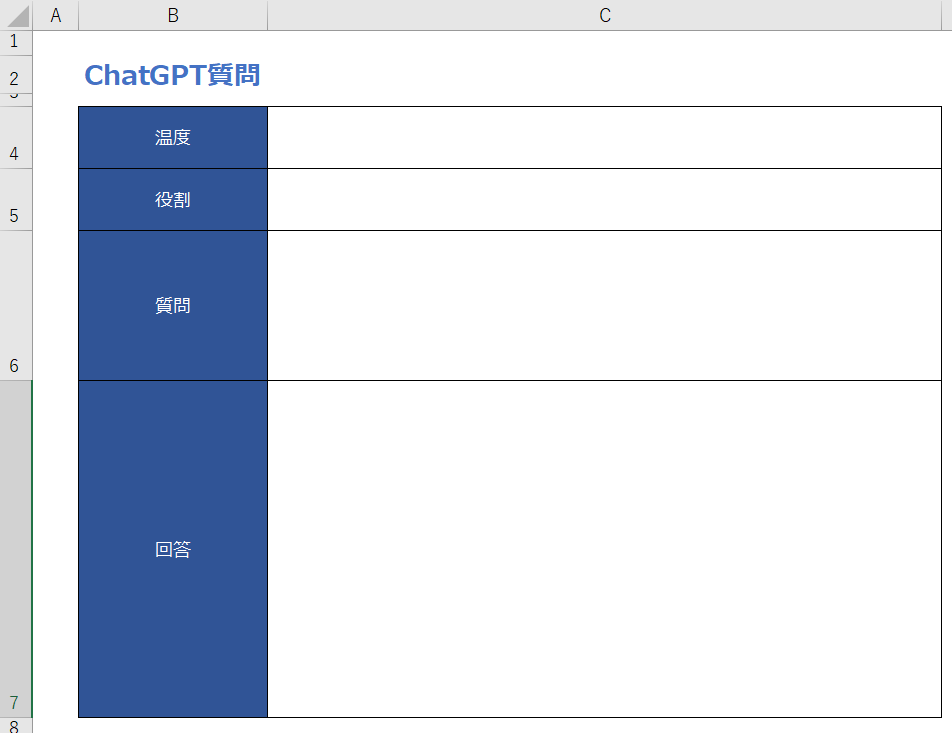
「温度」(4行目:3列目)「役割」5行目:3列目)「質問」(6行目:3列目)「回答」(7行目:3列目)という形で作りました。行と列を変えてしまうと上記でお見せしたプログラムの変更も必要となります。行と列は左記の数値に合わせていただければと思います。
また、ボタンも追加することにしました。
先ずは、「開発」タブを押下して、「デザインモード」ボタンを押下します。
これによりボタンを追加することができます。
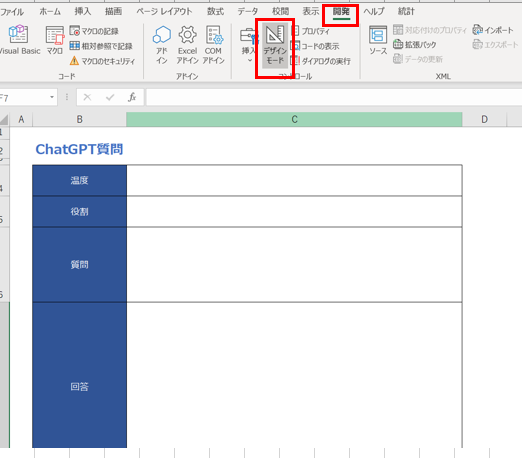
次に「挿入」ボタンを押下し、「ActiveX」の「ボタンマーク」を押下してください。
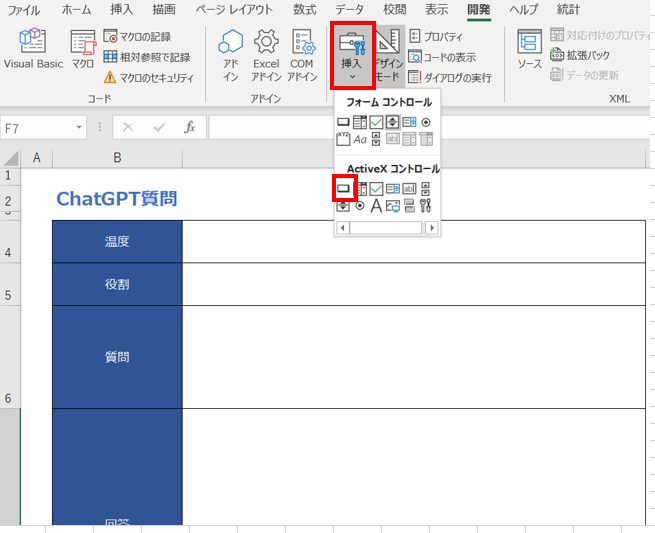
それから、ボタンを置きたいところにカーソルを置きます。以下のようにボタンが作られます。
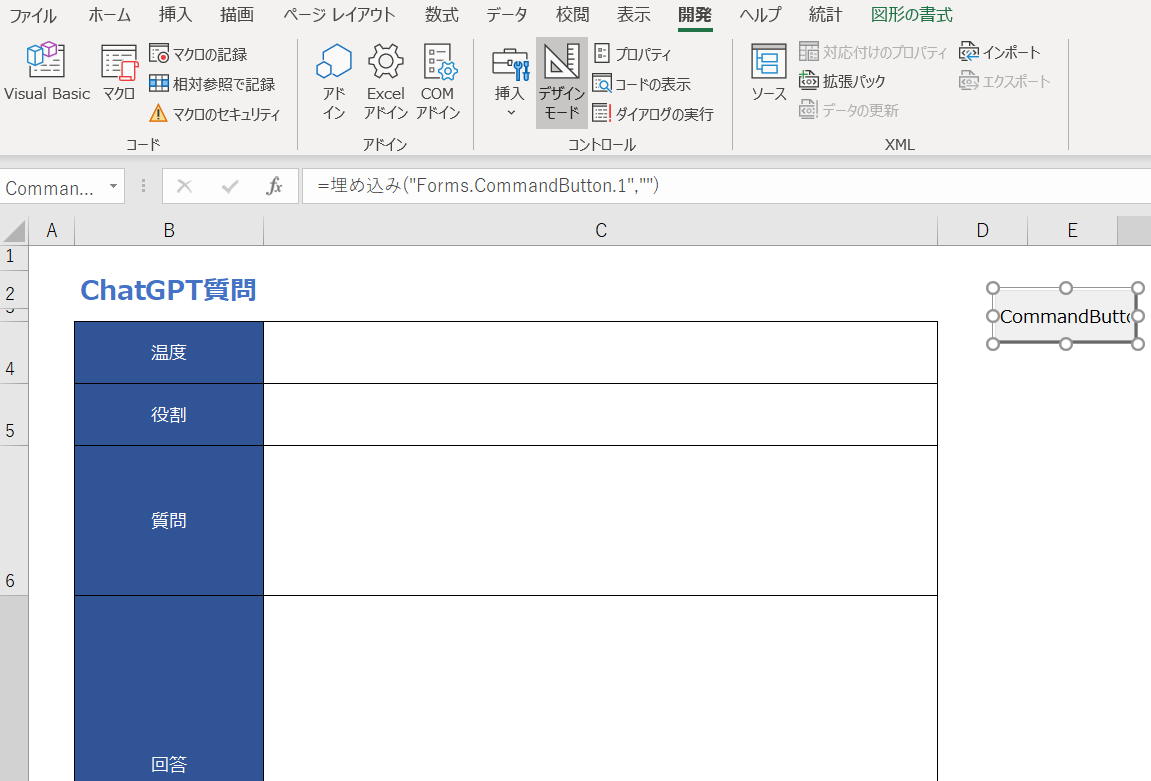
ボタンをダブルクリックしてください。
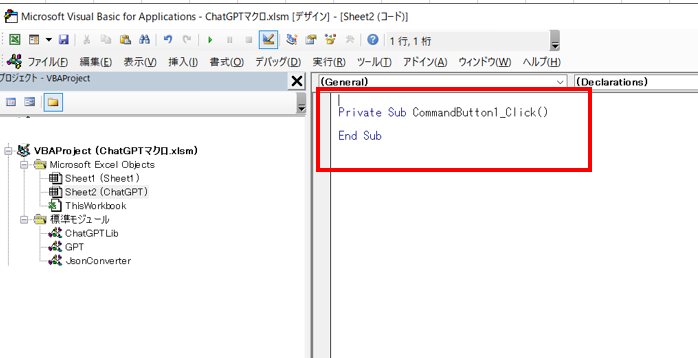
こんな感じになるかと思います。
そこで以下のプログラムを追加してください。
```vb
Call GPT.CallGPT
```
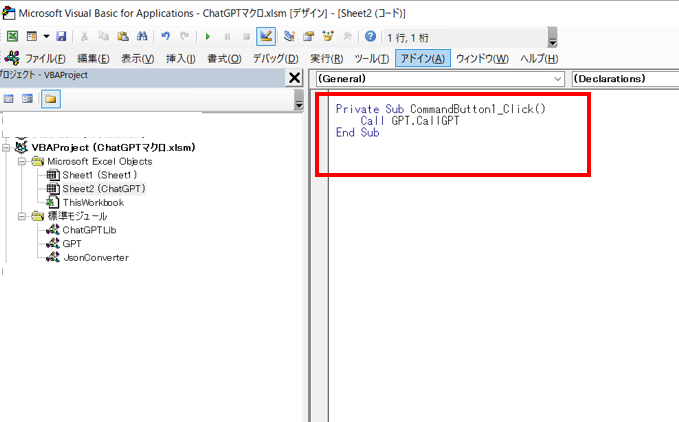
さて、ここまでできました。
では、「デザインモード」ボタンを押下して、デザインモードを解除します。これでプログラムが実行できます。
# いよいよ実行
「温度」「役割」「質問」を入力してみます。下図の入力内容を参考にしてもよろしいです。
生成AIの中での「温度」とは、質問に対する回答が「一般的なもの」なのかそれとも「尖ったもの」なのかを示す数値だと思っていただけると幸いです。今回は「一般的な回答」として「0」としておきます。
また回答が誰目線にするかをせってするため「役割」に記述しました。これが先ほど出てきた「ロール」となります。
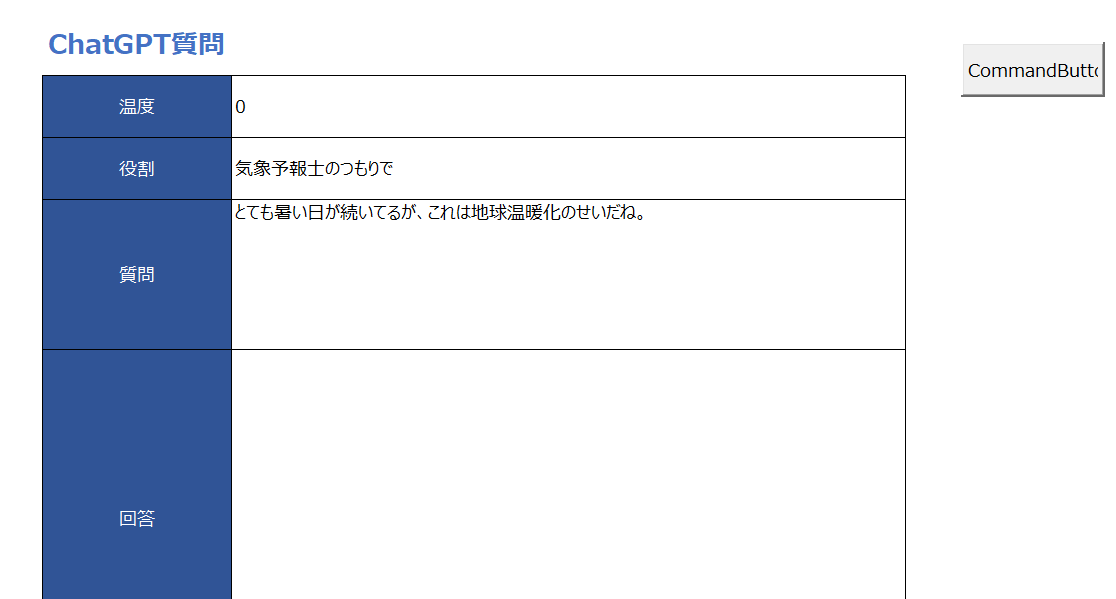
ではボタンを押下して、実行してみます。
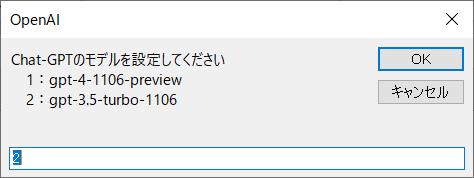
お金をケチりたいので、「2」(`gpt-3.5-turbo-1106`)でやってみます。「OK」ボタンを押下します。
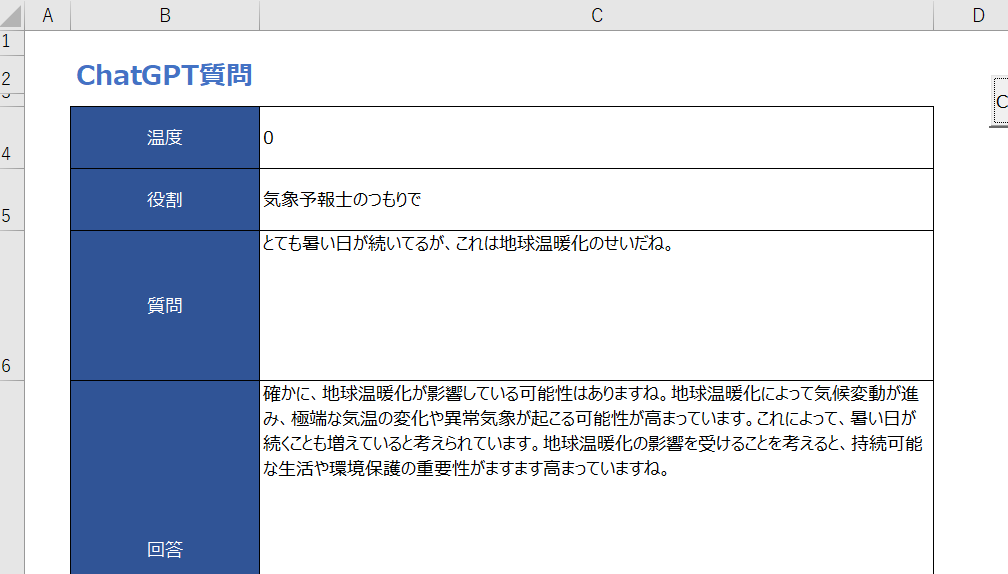
回答が出てきました!!
ばっちりです。後は、お好みで「温度」「役割」「質問」を入力して生成AIに問い合わせればよいかと思います。
# おわりに
エクセルマクロで生成AI APIを呼び出して、セルに出力することができました。
会社や自宅でもこのマクロを用いて、いろいろ検索していただければと思います。
*1:json_CurrentIndentation + 1) * Whitespace)
json_InnerIndentation = VBA.Space$((json_CurrentIndentation + 2) * Whitespace)
End If
End If
' Array
json_BufferAppend json_Buffer, "[", json_BufferPosition, json_BufferLength
On Error Resume Next
json_LBound = LBound(JsonValue, 1)
json_UBound = UBound(JsonValue, 1)
json_LBound2D = LBound(JsonValue, 2)
json_UBound2D = UBound(JsonValue, 2)
If json_LBound >= 0 And json_UBound >= 0 Then
For json_Index = json_LBound To json_UBound
If json_IsFirstItem Then
json_IsFirstItem = False
Else
' Append comma to previous line
json_BufferAppend json_Buffer, ",", json_BufferPosition, json_BufferLength
End If
If json_LBound2D >= 0 And json_UBound2D >= 0 Then
' 2D Array
If json_PrettyPrint Then
json_BufferAppend json_Buffer, vbNewLine, json_BufferPosition, json_BufferLength
End If
json_BufferAppend json_Buffer, json_Indentation & "[", json_BufferPosition, json_BufferLength
For json_Index2D = json_LBound2D To json_UBound2D
If json_IsFirstItem2D Then
json_IsFirstItem2D = False
Else
json_BufferAppend json_Buffer, ",", json_BufferPosition, json_BufferLength
End If
json_Converted = ConvertToJson(JsonValue(json_Index, json_Index2D), Whitespace, json_CurrentIndentation + 2)
' For Arrays/Collections, undefined (Empty/Nothing) is treated as null
If json_Converted = "" Then
' (nest to only check if converted = "")
If json_IsUndefined(JsonValue(json_Index, json_Index2D
*2:json_CurrentIndentation + 1) * Whitespace)
End If
End If
' Dictionary
If VBA.TypeName(JsonValue) = "Dictionary" Then
json_BufferAppend json_Buffer, "{", json_BufferPosition, json_BufferLength
For Each json_Key In JsonValue.Keys
' For Objects, undefined (Empty/Nothing) is not added to object
json_Converted = ConvertToJson(JsonValue(json_Key), Whitespace, json_CurrentIndentation + 1)
If json_Converted = "" Then
json_SkipItem = json_IsUndefined(JsonValue(json_Key
Excelマクロで仕事効率化(初心者向け)(5) | ChatGPTの利用

# はじめに
実際にVBAマクロのプログラミングをして、ChatGPTに質問を投げて、それが返ってくるツールを作ろうと思います。
これ自体は、`ChatGPT`や`Copilot`(Microsoft社)のWebブラウザからでも同様のことができます。
ただ、今後ChatGPTのAPIから結果を受け取り、その結果を基に例えば自動的に計算表を作成したり、ファイルを自動的にメール送信するなど、幅広い「自動化」を実現することができます。
それでは、プログラミングを進めて行きます!と、言いたいところなのですが、その前に基本的なことを抑えておく必要があります。今回はプログラミングの前に押さえておくべき基本的なことについて説明します。
# 押さえておくべき基本的なこと
以下、押さえておくべき基本的なことです。
これらの項目についての詳細は、次の章以降で説明します。
・API
API(アプリケーションプログラミングインターフェース)とは、異なるソフトウェアが互いに通信し、機能を共有するためのルールやプロトコルの集合です。例えば、天気アプリが天気情報を取得するために気象データ提供サービスのAPIを利用します。APIは、開発者が既存の機能を簡単に利用できるようにし、新しいソフトウェアの開発を効率化します。
・JSON
JSON(JavaScript Object Notation)とは、データを軽量かつ人間が読み書きしやすい形式で表現するためのフォーマットです。主にデータの送受信や保存に使われます。JSONはキーと値のペアで構成され、配列やオブジェクトをサポートします。例えば、ウェブアプリケーションがサーバーとデータをやり取りする際によく使用されます。
・ChatGPT API
OpenAIが提供するChatGPTモデルを使った対話や自然言語処理をアプリケーションに統合するためのインターフェースです。このAPIを利用することで、開発者は自分のアプリやサービスにChatGPTの機能を組み込むことができます。例えば、カスタマーサポートの自動応答、チャットボット、言語翻訳などの機能を実装できます。 |
いかがでしょうか?これはChatGPTに質問した結果をそのまま載せたものなのですが、何となくは分かるかもしれませんが、とにかく言い回しがややこしいですね。
次の章からは、これら3つについてもう少し噛み砕いて説明をします。
# APIとは
APIとは、装置間でやり取りするためのルールです。APIにはいろいろなものがあるのですが、ここでは「httpsプロトコル」について説明をします。「httpsプロトコル」は、Webブラウザにhtmlファイルの情報などを表示させたりする際に使用しており、APIでは装置間の会話で利用しています。
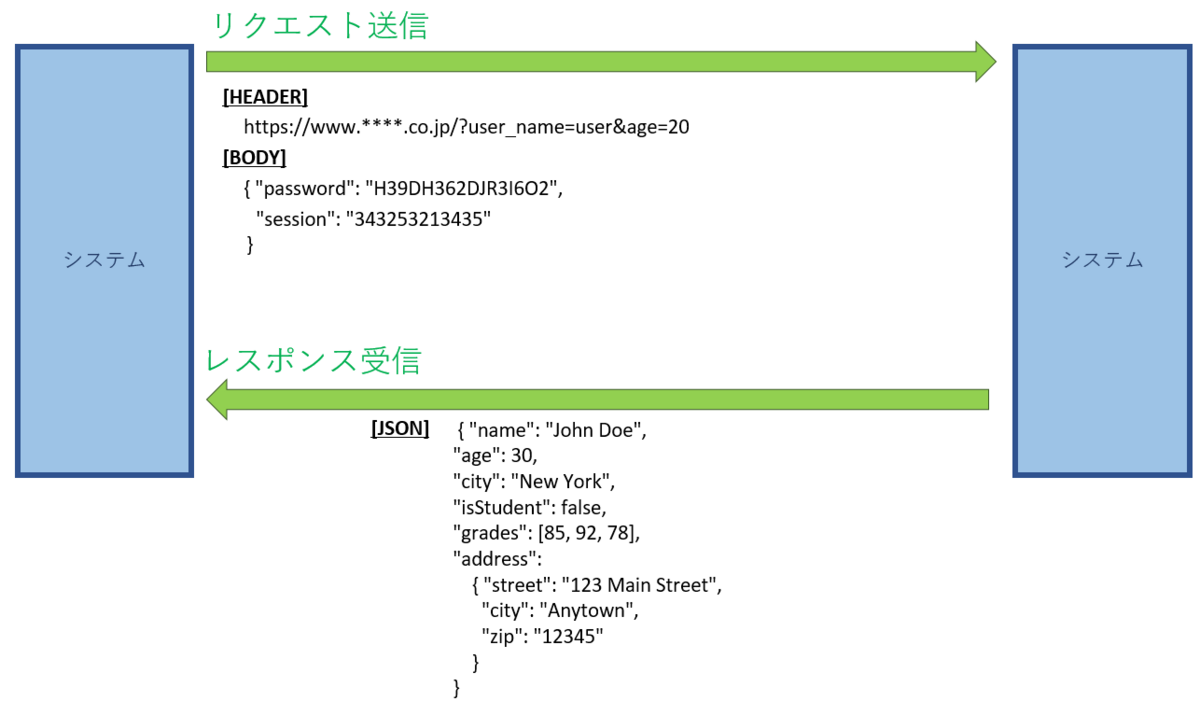
具体的に図で示します。左のシステムから右のシステムに対してリクエストを送信します。これは、LANケーブルや無線LANを通って右のシステムに到達します。
### リクエスト送信
ここでは、送信リクエストはhttpsとして説明します。
httpsは`ヘッダー部分`と`ボディ部分`に分かれています。
##### ヘッダ
```html:
https://www.****.co.jp/?user_name=user&age=20
````
ヘッダは上記のような文字列で、ブラウザ上部のURL表示ボックスでも見たことがあるかと思います。
`www.****.co.jp`は`FQDN`と言って、一般的に言われている「ドメイン名」の一種で、サーバを特定するアドレスと思ってもらえばよいです。
また、その右部に`?user_name=user&age=20`とあります。これは「パラメータ」と言って「?」より右に記載されます。「パラメータ名」と「パラメータ値」が「=」でつながれており、それがセットになっています。ここでは「ユーザ名はuserで、年齢は20歳」ということになります。
##### ボディ
図に`BODY`という記載があります。これは`ヘッダ`と一緒にLANを伝わってデータが送られるのですが、人が表面的には見ることができません。右のシステムではリクエストを受ける際に、`BODY`の情報を`Cookie`など、人が直接見られないように格納します。
httpに対してhttpsはセキュアな通信であり、httpsの場合`BODY`部分は暗号化され、第三者に盗み見られることは無くなります。ですので、重要な情報はこの`BODY`の中に入れて送信することが多いです。
### レスポンス受信
左のシステムは、レスポンスを受信します(図では下部の`JSON`が該当)。この時後ほど説明しますが、`JSON形式`で受け取ることになります。「グラフ構造」(樹形図やトーナメントのようなツリー構造)が得意で、親子関係を上手く表現することができます。一方、CSVファイルやデータベースでは表形式であり、「グラフ構造」を表見するのは不得意です。
# JSON とは
先ほどの図の中にある`JSON`のサンプルを用いて図式化します。
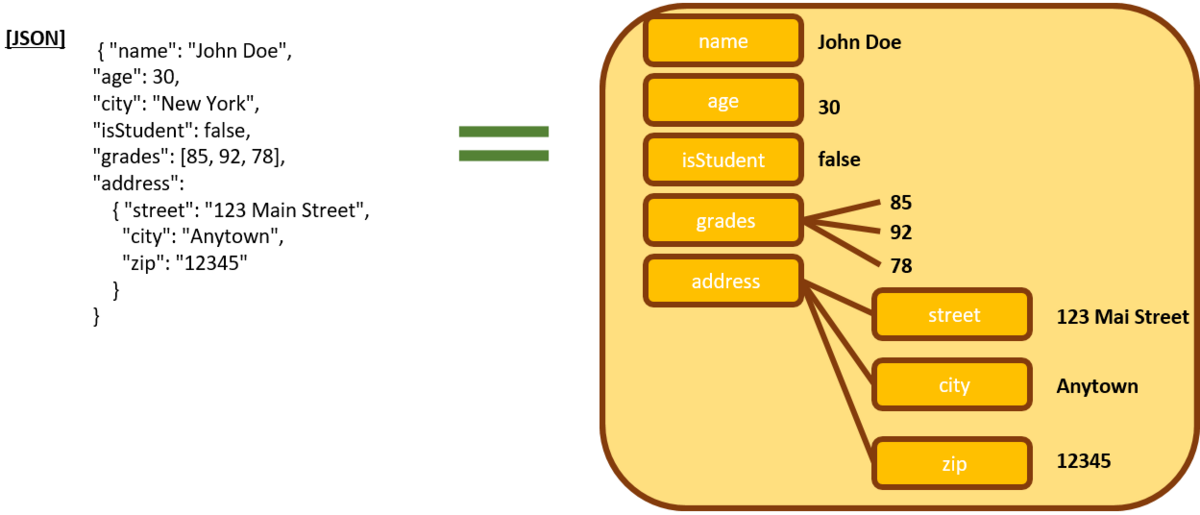
左側の`JSON`形式のデータを、右側に模式化しています。
先ほどお伝えした通り、`JSON`は「グラフ構造」になっていることが分かります。
このデータは「名前がJohn Doeで、30歳、学生ではなく、成績はまずまず、それから住所はAnyton市の123メインストリートでzip番号が12345」といった感じでしょうか。
# ChatGPT API を利用する
次に`ChatGPT API`の利用がでるようにするための操作について説明します。
CHatGPTのAPIを利用できるようにするには、ChatAPTのサイト( https://platform.openai.com/ )からユーザ登録とクレジットカードの登録をする必要があります。それが完了して初めて利用することができます。
以下に、その手順を示します。
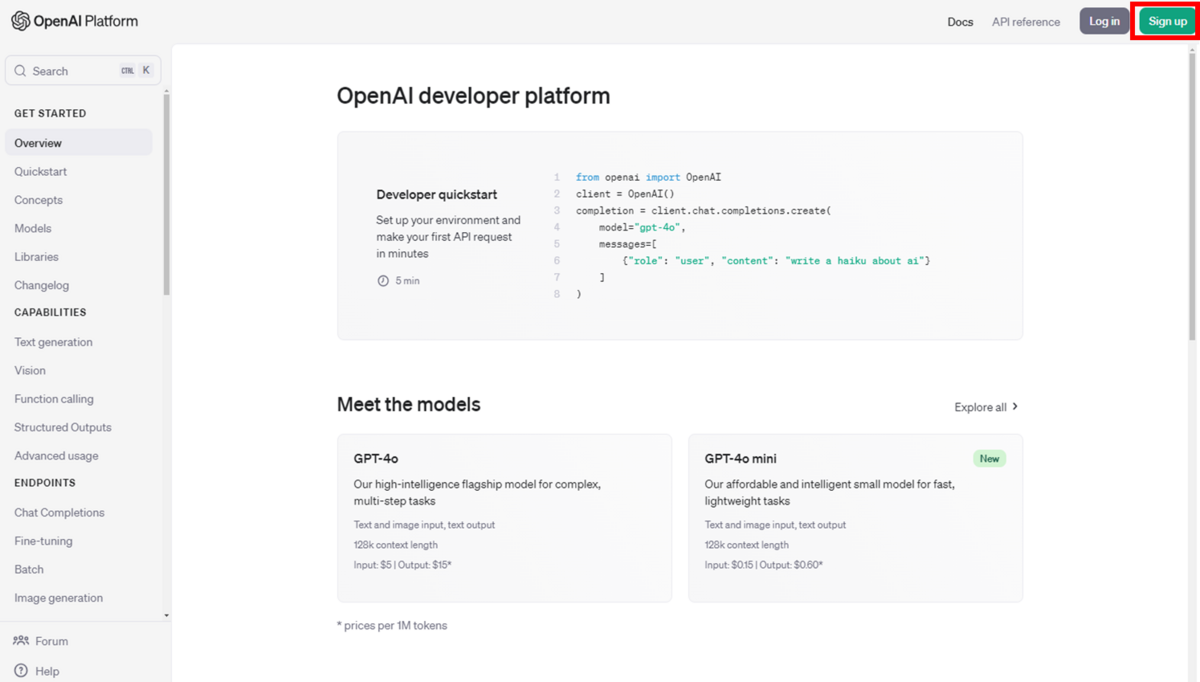
ChatGPTのプラットフォーム画面が表示されたら、右上の`Sign Up`ボタンを押下します。
「アカウントの作成」という画面が表示されます。
この画面にメールアドレスとパスワードを入力します。パスワードは「長さ12文字以上」が必要です。「続ける」ボタンを押下します。
「メールを検証する」画面が表示されます。登録したメールアドレスにChatGPTからメールが届きます。
届いたメールを開き、「メールアドレスの確認」ボタンを押下します。
これで電子メールアドレスが完全に紐づけられました。
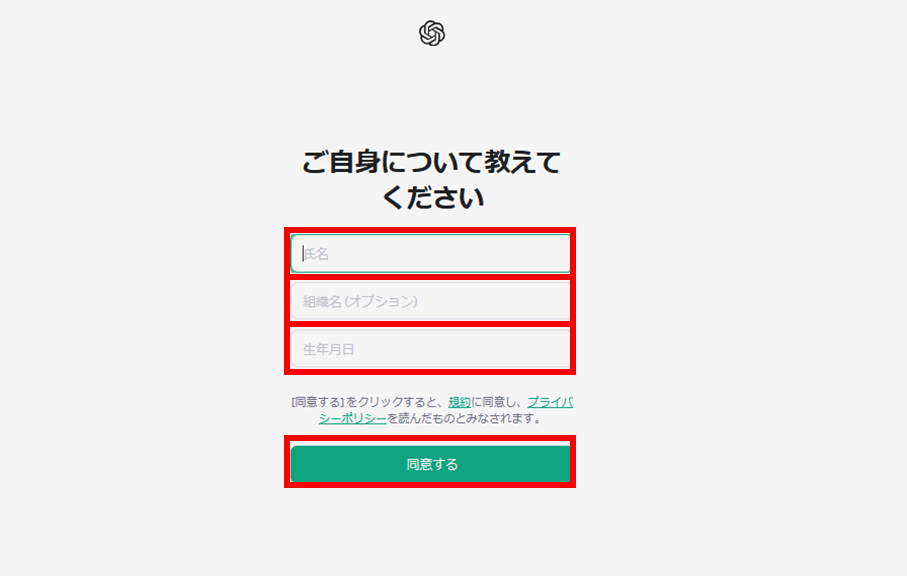
「ご自身についいて教えてください」画面が表示されるので、「氏名」「組織名(オプション)」「生年月日」(DD/MM/YYYY形式)を入力し、「同意する」ボタンを押下します。
!
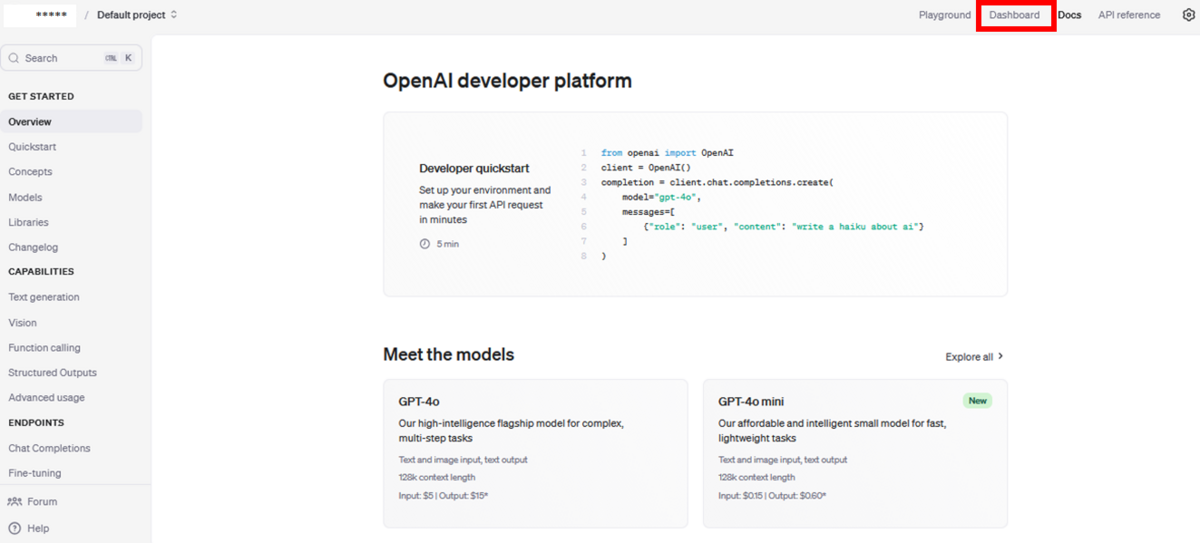
プラットフォーム画面に戻りますので、右上の「Dashboard」ボタンを押下してください。
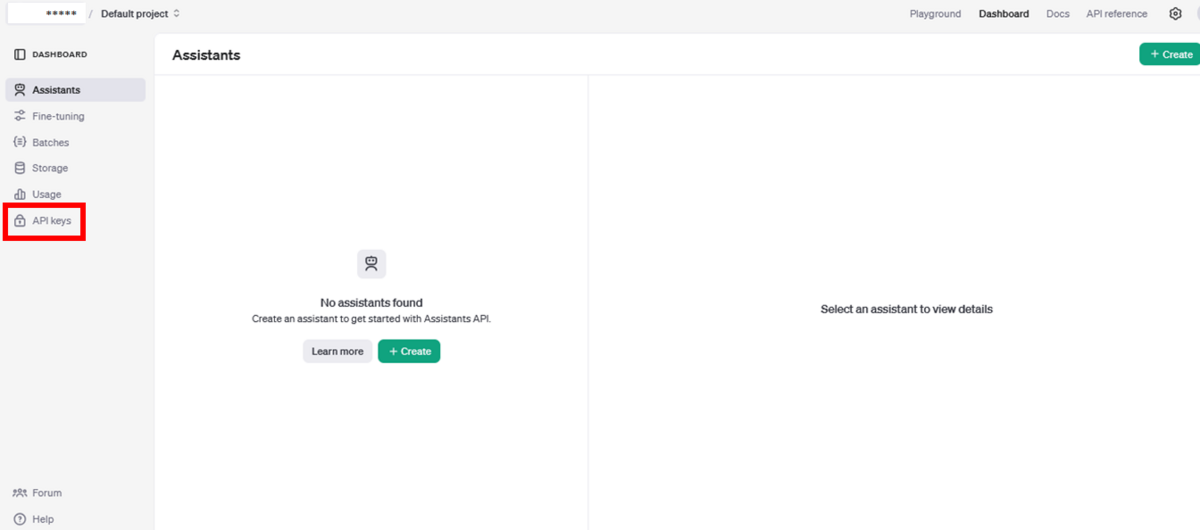
そうすると、管理画面が出てきますので、左側の「API keys」ボタンを押下して、APIを作成します。
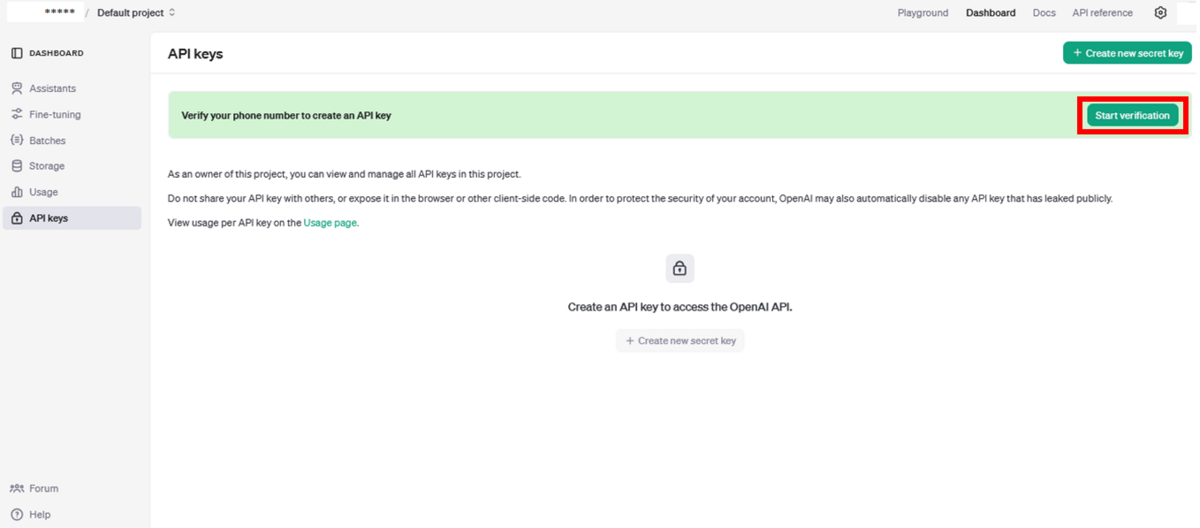
そうすると「API keys」画面が表示されます。右上の「Start verification」ボタンを押下します。
電話番号入力画面が表示されるので、電話番号を入力します。ショートメールの返信が受けられるように、スマートフォンの電話番号を入力します。入力は「090-・・・」ではなく最初の「0」を省いて、「90-・・・・・」と入力するようにしてください。
「Send code」ボタンを押下すると、スマートフォンのショートメールにコードが届きます。
届いた6桁のコードを入力します。すると次の画面に遷移します。
「A note on credits」という画面が表示されます。「Continue」ボタンを押下すると実際にクレジットカード情報を登録する画面に移ります。ここではセキュリティ上画面を掲載するのは控えました。

クレジットカード情報を登録すると、「Create new secret key」画面に遷移します。
上段に`API key`の名前を入れてください。下段は「Default project」のままで結構です。
「Create secret key」ボタンを押下して、`API key`を作成します。

「Save your key」画面に`key`が表示されます。(ここでは`sk-proj`から始まる文字列)
「Copy」ボタンを押下して、何か別のテキストファイルなどに張り付けて保存しておきます。
そうしなければこの`key`は二度と確認することができなくなります。
最後に「Done」ボタンを押下します。
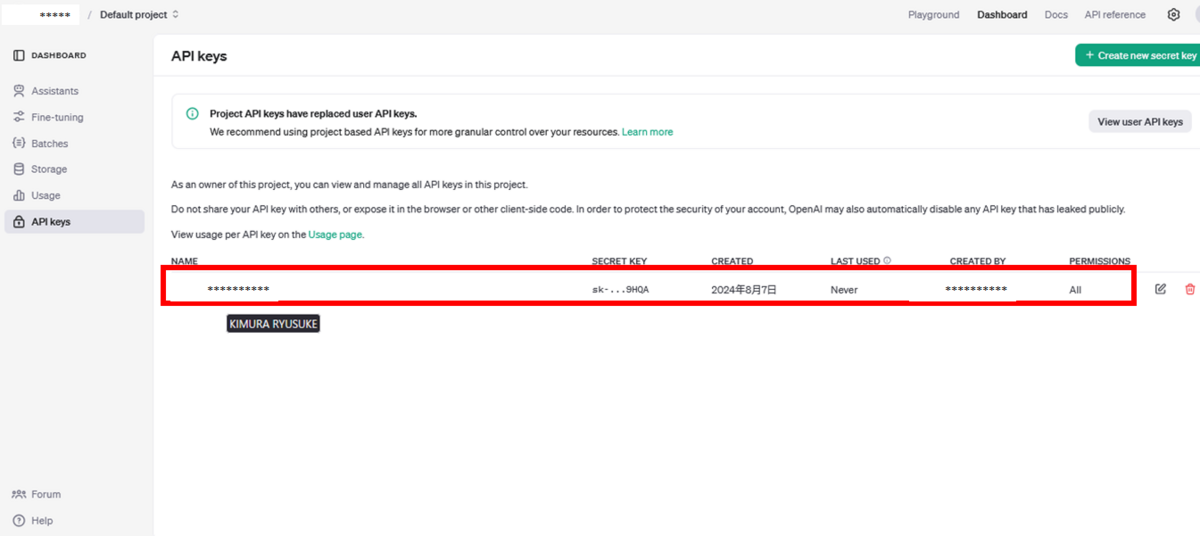
赤枠で示した通り、`API key`が作成されていることが分かります。
これで、Excelマクロで`API key`を利用することができるようになります。
# おわりに
今回はExcel VBAマクロでChatGPT APIを利用できるようにするため、ChatGPTにメールアドレス・携帯電話番号、それからクレジットカード情報を登録し、`API key`が作成されるところまで確認をしました。
次回は、VBAマクロのプログラミングをして実際に生成AIと会話をしていきます。

